> ## Documentation Index
> Fetch the complete documentation index at: https://docs.qlero.io/llms.txt
> Use this file to discover all available pages before exploring further.
# Statements
> Understand your royalty statements and download a copy for your records.
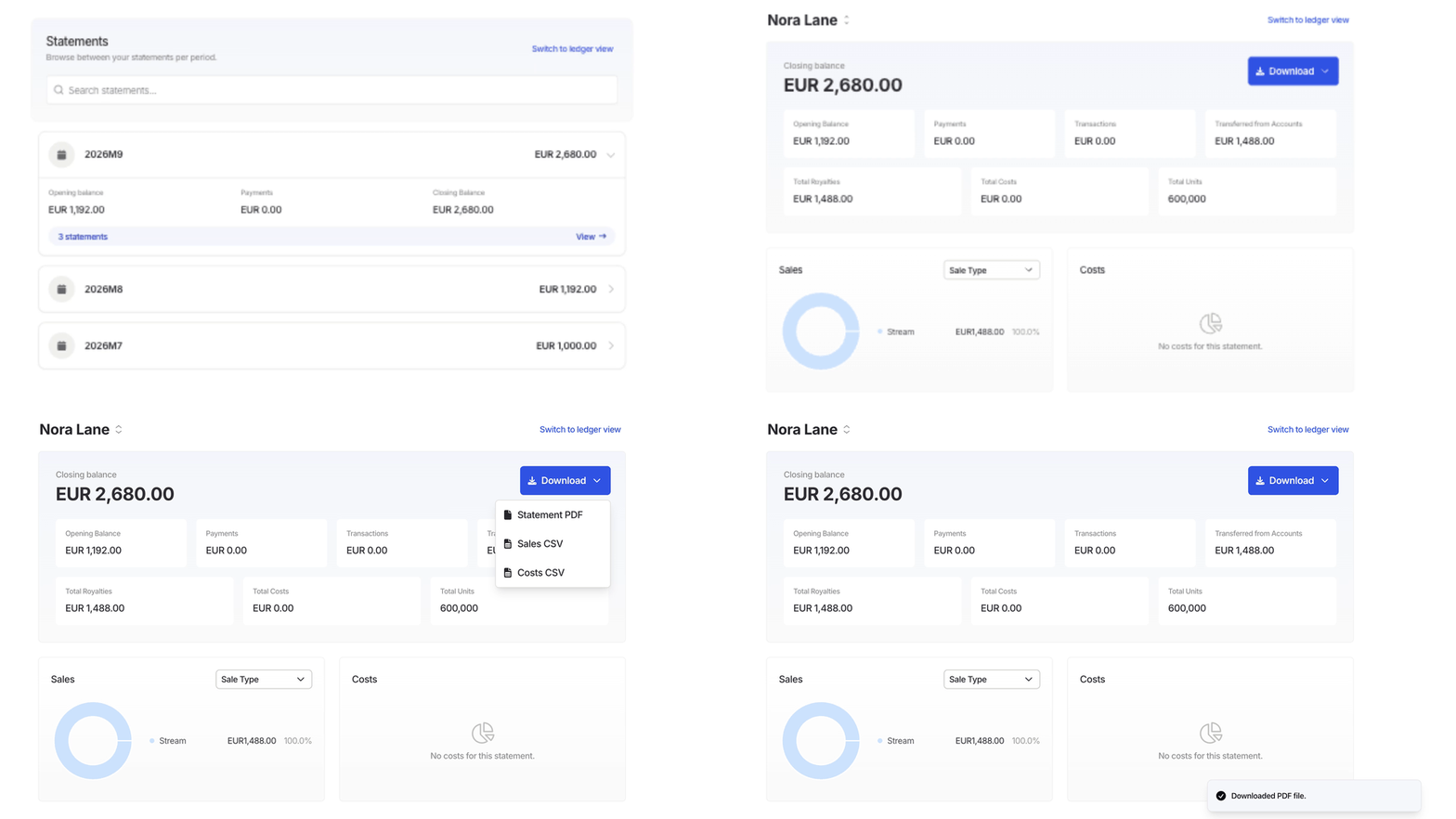
**Statements** in the Artist Portal lists the statements your record company has published for you, grouped by accounting period. Start with your payee summary to understand the balance, then look at individual accounts or contracts when you need the breakdown.
Viewing and downloading statements requires Artist Portal access to the payee. If your artist or company name doesn't appear after you sign in, ask your record company's administrator. See [User access and roles](/user-access-and-roles).
## Statements by period
Each period shows its closing balance. Expanding it reveals **Opening balance**, **Payments**, and **Closing Balance**, with amounts shown separately by currency. **View** leads to that period's statement details.
If you see **No statements exist yet** and you're expecting a statement, contact your record company. Statements appear here after your record company publishes them.
## Understand your statement
The statement opens with your payee summary. **Closing balance** is the balance at the end of that period. The [Dashboard](/artists/overview/dashboard) shows your current payable balance, which can change after a payment is recorded.
The summary explains how the period's balance changed:
**Opening Balance.** The balance carried into the period.
**Payments.** Payment entries recorded against you in the period.
**Transactions.** Adjustments and other manual entries on your payee statement.
**Transferred from Accounts.** The amount moved from your accounts to your payee balance for the period.
For example, Nora Lane's September statement carries forward August's EUR 1,192.00 closing balance, which includes her earlier opening balance and August's activity. September adds EUR 1,488.00 from her accounts. With no payments or other transactions, the closing balance is EUR 2,680.00.
**Total Royalties**, **Total Costs**, and **Total Units** summarise the calculated sales and costs behind the statement. These totals don't include manual transactions, so Total Royalties alone isn't the amount payable.
Below the summary, **Sales** breaks down royalties by **Sale Type**, **Format Type**, or **Price Category**. The **Tracks**, **Releases**, **Territories**, and **Stores** tabs show where those royalties came from. For a publishing-only record company, **Works** replaces Tracks and Releases, and Costs isn't shown.
**Accounts and contracts.** The name above the summary opens a selector for your payee, accounts, and contracts. An account groups deals; a contract shows the result of an individual deal. A contract can have royalties and a zero closing balance because its balance has transferred to the account.
## Download your statement
Use the payee summary when you want a copy covering your statements for the period.
Click **Statements**, expand the period, then click **View**.
Keep your artist or company name selected above the summary. If you're viewing an account or contract, click its name and select your payee.
Click **Download**, then choose **Statement PDF** for the statement, **Sales CSV** for its sales detail, or **Costs CSV** for its cost detail. Costs CSV isn't shown for publishing-only statements.
The file downloads to your device.
 ## Ledger view
On a larger screen, **Switch to ledger view** shows statements in a table. Expand your payee row to see accounts and their contracts, with columns for opening balance, earnings, costs, payments, other transactions, transfers between contracts, accounts, and your payee, and closing balance. The **Period** filter on the main Statements page narrows the table to the periods you choose.
**Switch to summary** returns to the period cards or statement summary.
## Next steps
Return to the [Dashboard](/artists/overview/dashboard) for your current payable balance. For questions about a statement's amounts, contact your record company.
## Ledger view
On a larger screen, **Switch to ledger view** shows statements in a table. Expand your payee row to see accounts and their contracts, with columns for opening balance, earnings, costs, payments, other transactions, transfers between contracts, accounts, and your payee, and closing balance. The **Period** filter on the main Statements page narrows the table to the periods you choose.
**Switch to summary** returns to the period cards or statement summary.
## Next steps
Return to the [Dashboard](/artists/overview/dashboard) for your current payable balance. For questions about a statement's amounts, contact your record company.