> ## Documentation Index
> Fetch the complete documentation index at: https://docs.qlero.io/llms.txt
> Use this file to discover all available pages before exploring further.
# Creating and linking contract terms
A contract's terms set the rates it pays, scenario by scenario: a physical sale can pay a different royalty rate than a download, and a sale in Germany a different rate than one in Japan. Every contract needs at least a sales term; until it has one, Qlero cannot price its sales and holds them in suspense, the waiting area for sales it cannot calculate yet.
There are four types of term:
* **Sales terms** set the royalty rate a sale pays, and are the one type every contract needs.
* **Cost terms** set what share of a cost is allocated to the contract.
* **Deduction terms** reduce the royalty rate selected by the sales term, either by subtracting percentage points from it (**Absolute deduction**) or by multiplying it by the percentage you enter (**Relative deduction**), so a 20% rate with a 90% relative deduction pays 18%.
* **Escalation terms** change the rate once the contract's totals cross thresholds you define, for example a higher rate after 100,000 units.
A contract holds at most one sales term, one cost term, and one deduction term, plus any number of escalation terms. **Agreements › Terms** lists all your terms, filtered to the shared ones by default, and each contract's **Terms** tab shows what that contract uses.
Creating and linking terms requires write access to Agreements. If you don't see the **Create New** button, ask your administrator.
## Creating a term
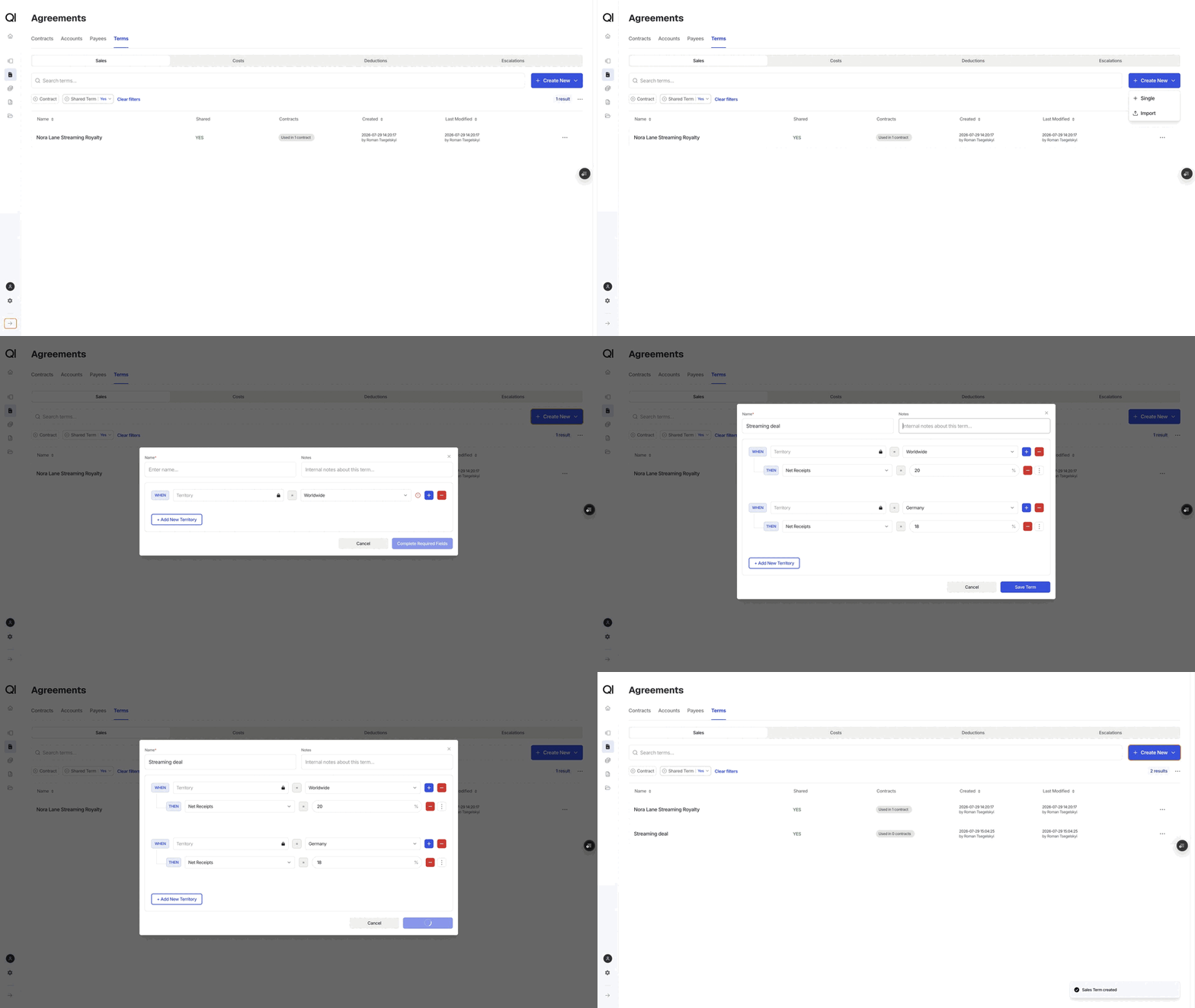
Pick the tab for the type you want: **Sales**, **Costs**, **Deductions**, or **Escalations**. Then click **Create New › Single**. Terms created here are shared, so any contract can use them.
Give the term a **Name** you will recognize from a dropdown later, such as the deal type it prices. **Notes** is optional and internal.
Each rule reads as a sentence, and the builder shows the badges to match: **When** a sale is in a territory, **AND** it meets your conditions, **THEN** it pays a rate.
Every rule starts with **When Territory =**, set to **Worldwide** by default. From there you have two choices at every level:
* Click **+** to add a condition below it: **Sale Type**, **Format**, **Price Category**, **Source**, or **Store**, in that order. Each dropdown offers your configured values plus **All**, and for **Sale Type**, **Format**, and **Price Category** also your groups.
* Or end the branch with a rate: pick a **Calculation type**, which sets the sales amount the royalty percentage applies to (**Gross Receipts**, **Net Receipts**, **Retail Price**, **Unit Price**, or **PPD**, the published price to dealer), and enter the percentage.
A common term is just a rate per sale type, sometimes split once more by format:
* **When** Territory = Worldwide, **AND** Sale Type = Stream, **THEN** 20% of Net Receipts
* **When** Territory = Worldwide, **AND** Sale Type = Download, **THEN** 18% of Net Receipts
You do not need to use every level. A rate placed straight after **Sale Type** covers every format, source, and store, and picking **All** at a level is the same as leaving the level out.
**+ Add new territory** at the bottom starts another branch, so one term can price Germany differently from the rest of the world.
The term appears in the list, showing how many contracts use it.
 Cost terms use the same builder with a shorter tree: **Territory**, then **Cost Type**, then an allocation percentage; the contract carries that share of a matching cost, scaled by its participation rate. Escalation terms look different at the end of the branch: instead of one rate they hold a table of tiers, each saying what the threshold is and how the rate changes once it is reached.
When several rates in one term could match the same sale, the most specific one wins, and the top-to-bottom order of branches on the screen makes no difference. [How the terms hierarchy works](/labels/agreements/terms-hierarchy) walks through the rules with examples.
## Link a term to a contract
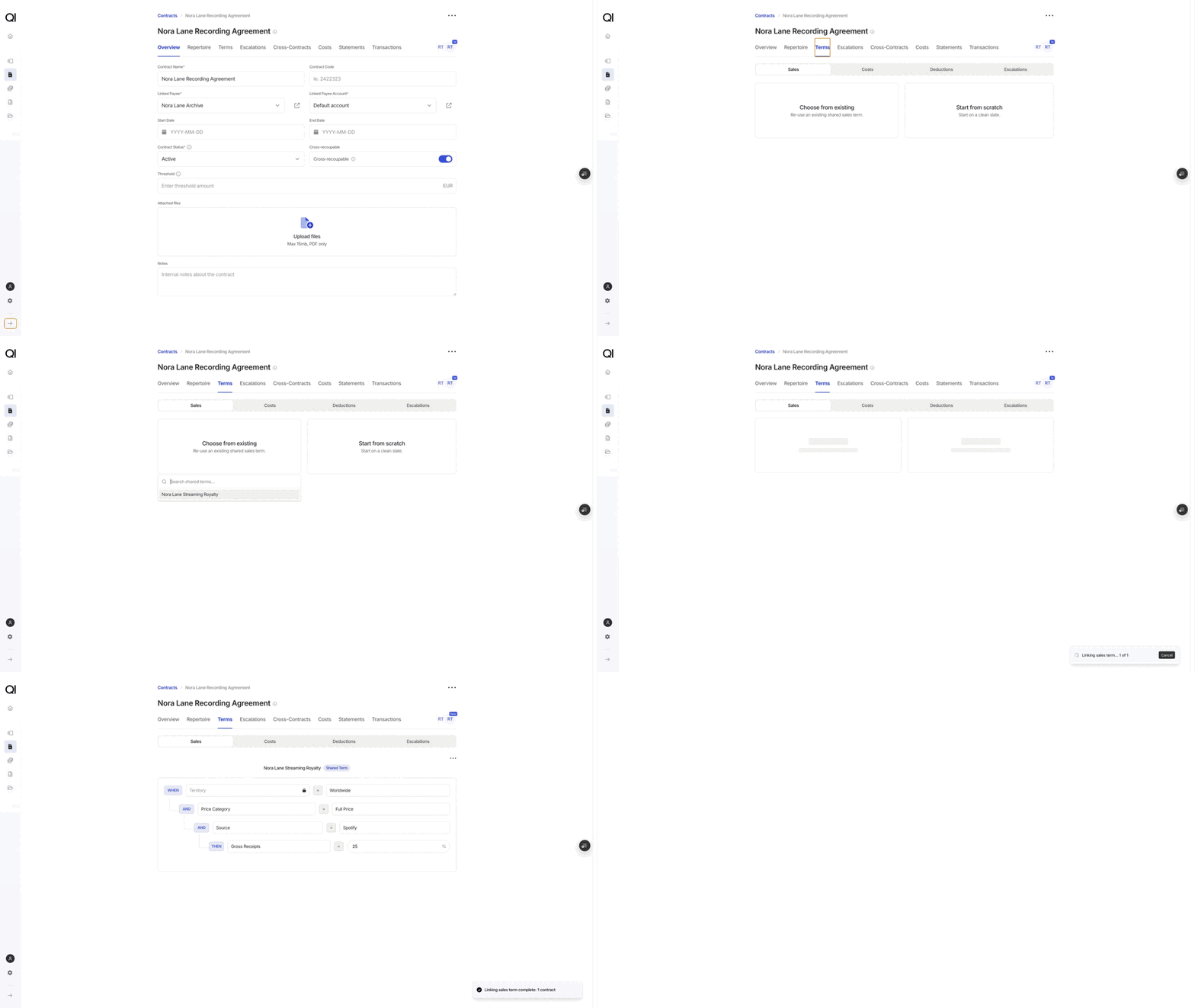
Terms attach on the contract's **Terms** tab, one sub-tab per type. On an empty sub-tab you get two cards:
* **Choose from existing** lets you pick one of your shared terms. The picker only lists shared terms, and ones already linked to this contract are grayed out.
* **Start from scratch** opens the empty builder. A term created here belongs to this contract alone; it is not shared and does not appear on other contracts.
Cost terms use the same builder with a shorter tree: **Territory**, then **Cost Type**, then an allocation percentage; the contract carries that share of a matching cost, scaled by its participation rate. Escalation terms look different at the end of the branch: instead of one rate they hold a table of tiers, each saying what the threshold is and how the rate changes once it is reached.
When several rates in one term could match the same sale, the most specific one wins, and the top-to-bottom order of branches on the screen makes no difference. [How the terms hierarchy works](/labels/agreements/terms-hierarchy) walks through the rules with examples.
## Link a term to a contract
Terms attach on the contract's **Terms** tab, one sub-tab per type. On an empty sub-tab you get two cards:
* **Choose from existing** lets you pick one of your shared terms. The picker only lists shared terms, and ones already linked to this contract are grayed out.
* **Start from scratch** opens the empty builder. A term created here belongs to this contract alone; it is not shared and does not appear on other contracts.
 Escalation terms are the exception to one-per-type: a contract can hold several. Unlike branches inside a term, the escalation terms on a contract do apply in card order; drag the cards to change it.
### Shared terms and contract-only terms
Use a shared term when a change should reach every deal that uses it, and a contract-only term when it should not.
A **contract-only** term (created from scratch on the contract) is editable right on the **Terms** tab, and removing it deletes it, since nothing else uses it.
A **shared** term shows a **Shared Term** badge and is read-only on the contract page. For sales, cost, and deduction terms the menu next to it gives you three ways out; a shared escalation term only offers **Un-link**:
* **Edit Term** opens **Agreements › Terms**, where you find the term and change it for every contract that uses it.
* **Un-link** detaches it from this contract but keeps it for the others.
* **Un-link and duplicate** swaps it for an editable, contract-only copy, which is the way to customize one contract's pricing without touching the rest.
Editing a shared term changes the pricing of every contract that uses it. Check the term's **Contracts** tab first to see what it is used in, and prefer **Un-link and duplicate** when a change should apply to one contract only.
A contract-only term cannot be picked from another contract. If it turns out to be worth reusing, find it on **Agreements › Terms** with the **Shared Term** filter set to **No** and use **Duplicate**; the copy is shared and can be linked anywhere.
### Assign terms in bulk
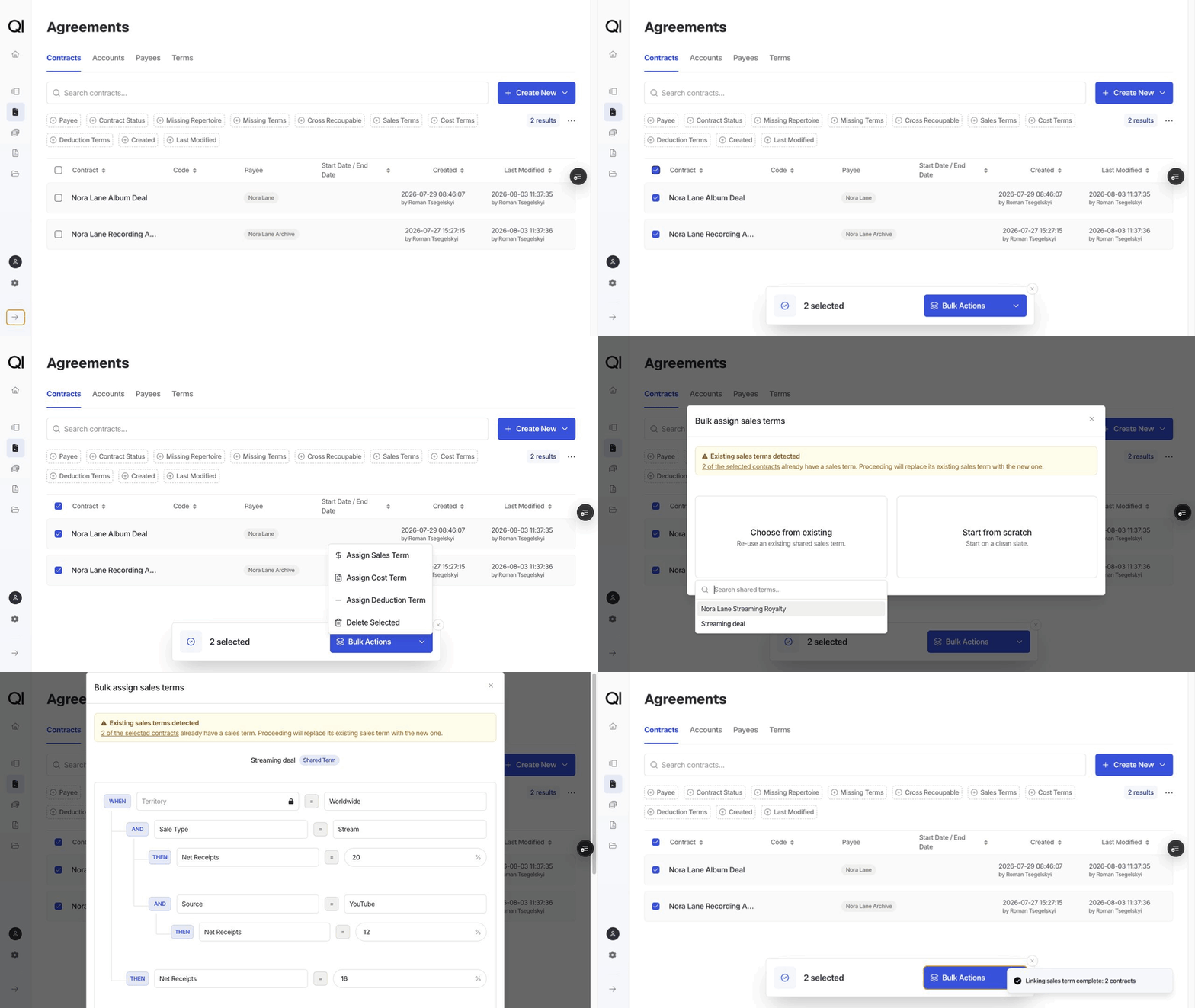
To put one term on many contracts, select them on **Agreements › Contracts** and open **Bulk Actions**, then **Assign Sales Term**, **Assign Cost Term**, or **Assign Deduction Term**. You can pick an existing shared term or build a new one, which is saved as shared so all selected contracts can point at it. If some of the selected contracts already have a term of that type, Qlero warns you and lists them, because assigning replaces what they have. A replaced contract-only term is not deleted; it stays on **Agreements › Terms**, no longer linked to anything. There is no bulk action for escalation terms.
Escalation terms are the exception to one-per-type: a contract can hold several. Unlike branches inside a term, the escalation terms on a contract do apply in card order; drag the cards to change it.
### Shared terms and contract-only terms
Use a shared term when a change should reach every deal that uses it, and a contract-only term when it should not.
A **contract-only** term (created from scratch on the contract) is editable right on the **Terms** tab, and removing it deletes it, since nothing else uses it.
A **shared** term shows a **Shared Term** badge and is read-only on the contract page. For sales, cost, and deduction terms the menu next to it gives you three ways out; a shared escalation term only offers **Un-link**:
* **Edit Term** opens **Agreements › Terms**, where you find the term and change it for every contract that uses it.
* **Un-link** detaches it from this contract but keeps it for the others.
* **Un-link and duplicate** swaps it for an editable, contract-only copy, which is the way to customize one contract's pricing without touching the rest.
Editing a shared term changes the pricing of every contract that uses it. Check the term's **Contracts** tab first to see what it is used in, and prefer **Un-link and duplicate** when a change should apply to one contract only.
A contract-only term cannot be picked from another contract. If it turns out to be worth reusing, find it on **Agreements › Terms** with the **Shared Term** filter set to **No** and use **Duplicate**; the copy is shared and can be linked anywhere.
### Assign terms in bulk
To put one term on many contracts, select them on **Agreements › Contracts** and open **Bulk Actions**, then **Assign Sales Term**, **Assign Cost Term**, or **Assign Deduction Term**. You can pick an existing shared term or build a new one, which is saved as shared so all selected contracts can point at it. If some of the selected contracts already have a term of that type, Qlero warns you and lists them, because assigning replaces what they have. A replaced contract-only term is not deleted; it stays on **Agreements › Terms**, no longer linked to anything. There is no bulk action for escalation terms.
 ## Next steps
* Understand which rate a sale ends up paying in [How the terms hierarchy works](/labels/agreements/terms-hierarchy).
* Create the payee, account, and contract a term belongs to in [First-time setup: payees, accounts, contracts and terms](/labels/agreements/first-time-setup).
## Next steps
* Understand which rate a sale ends up paying in [How the terms hierarchy works](/labels/agreements/terms-hierarchy).
* Create the payee, account, and contract a term belongs to in [First-time setup: payees, accounts, contracts and terms](/labels/agreements/first-time-setup).