

Changing types and groups requires write access to RC Configurations. If you don’t see the Options button, ask your administrator. See User access and roles.
Types and groups
You can customise four kinds of values:- Sale Types describe how a sale is made or licensed, such as Stream or Download.
- Format Types describe the product format, such as CD or Vinyl.
- Price Categories distinguish pricing levels, such as Full Price or Budget.
- Cost Types classify expenses, such as Marketing or Recording.
Create a type
Names must be unique within a tab, and a type and a group can’t share a name.1
Open Types and Categories
Open the record company you want to configure, click Settings in the sidebar, then Configurations › Types and Categories.
2
Choose a tab
Click Sale Types, Format Types, Price Categories, or Cost Types.
3
Create the type
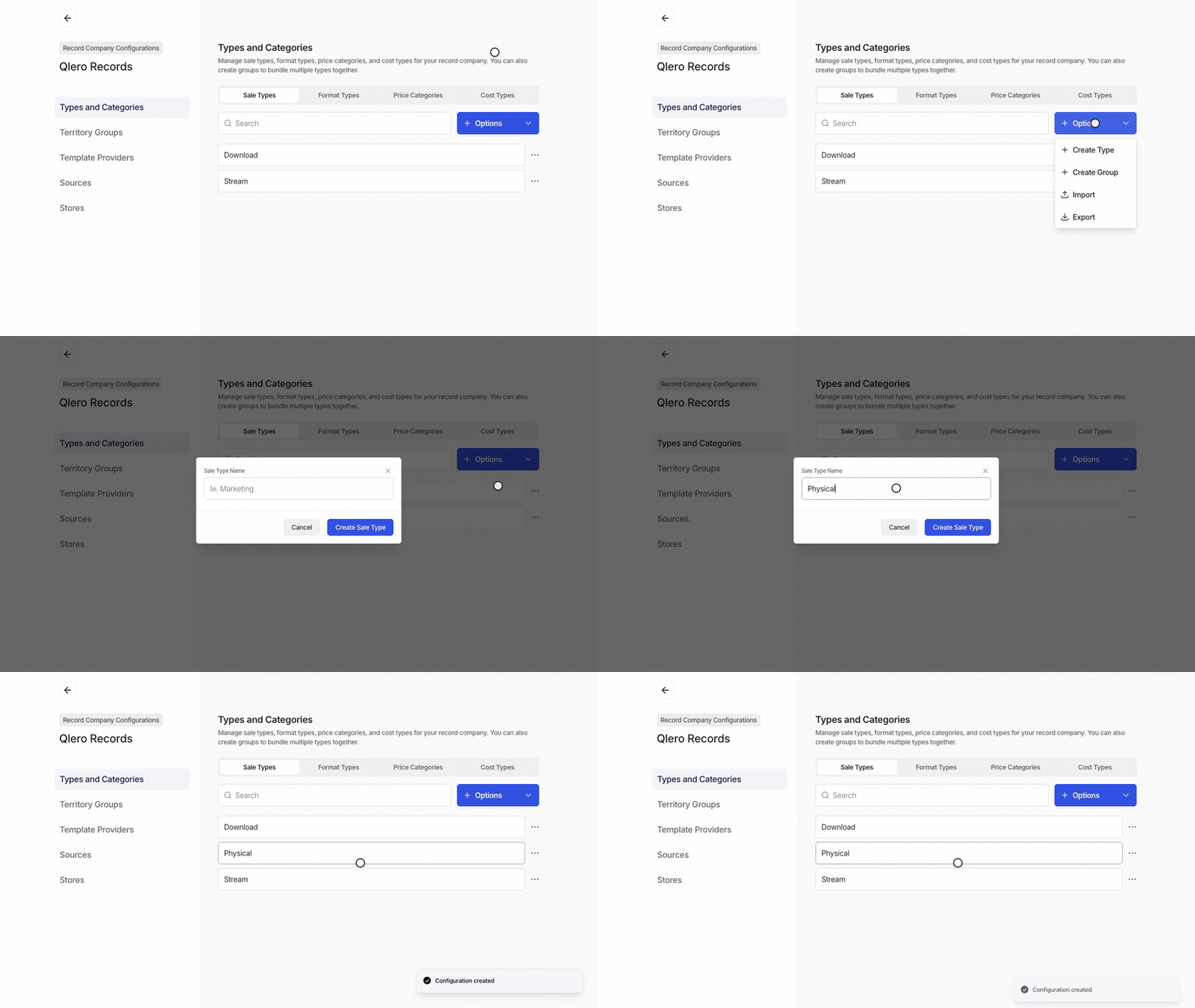
Click Options › Create Type, enter the name, and click the create button for that tab, such as Create Sale Type. The new type appears in the list.
Create a group
Custom groups are available on Pro and Enterprise plans.
1
Choose a tab
Groups live on the same tab as their types, so create any missing types first.
2
Pick the members
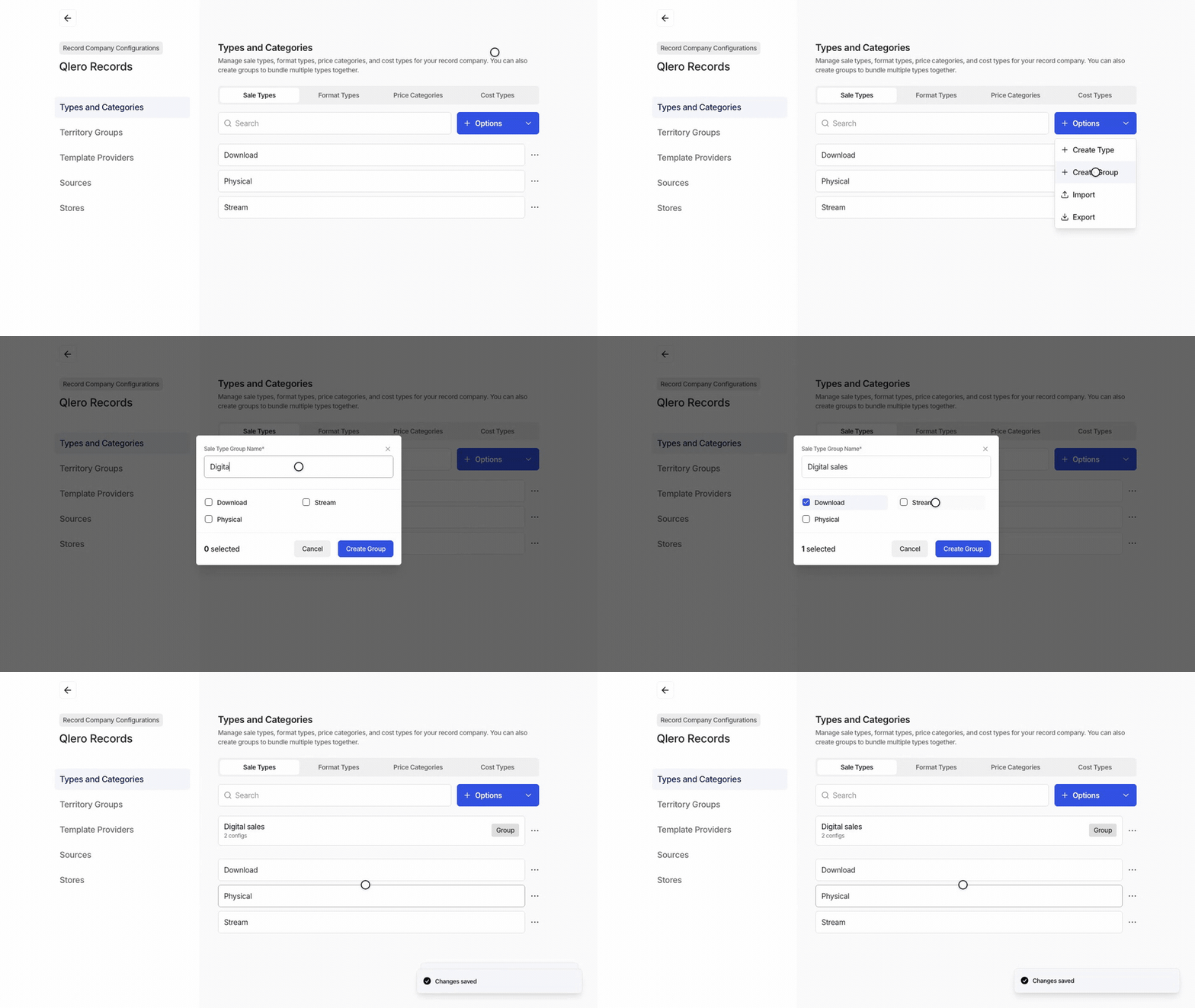
Click Options › Create Group, enter a name, and select the types to include.
3
Create the group
Click Create Group. The group appears above the individual types.
Edit or delete a type or group
Everything below happens on the same tab. Rename a type. Click its name in the list, enter the new name, then click Update. Terms and filters that use the type keep working and show the new name. Edit a group. Click its card, or open its row menu and choose Edit. Change the name or the selected types, then click Update Group. The types you select replace the previous membership. Delete a type or group. Open its row menu, choose Delete, and confirm. Deleting a group leaves its member types in place.Next steps
- Use your types and groups in Creating and linking contract terms.
- Create reusable country sets in Creating Territory Groups.