

Team roles
An organisation contains one or more record companies. These roles determine what each team member can do:
For a colleague who only checks statements, start with Viewer.
What an article means by access
View access covers reading an area. Write access covers the editing actions named for that area, which can include creating, importing, updating, and deleting. Some actions, such as publishing a period or deleting an import, have their own permission. Access notes name the area involved in the task. These connections help when an article uses a different name from the part of Qlero you’re working in: Repertoire and Agreements. Both sit under Repertoire & Agreements. The same access level covers tracks and releases as well as payees, accounts, contracts, and terms. Periods and Statements. Both use Periods & Statements access. Publishing, closing, and deleting a period require additional access beyond preparing it. Payments and Transactions. Both sit under Payments & Transactions. Opening a contract’s Transactions tab also requires access to Agreements. Imports, Exports, and Reports. Imports and Exports are under Data Files, with access separate from Repertoire. These areas and generated reports have no view-only permission: creating, viewing, and downloading are grouped together. Deleting an import, export, or report requires additional access. Settings and Configurations. Record Company Settings controls the company’s settings. RC Configurations covers sources, stores, template providers, types, and groups. These permissions are separate from managing team members. A task can need access to more than one area. For example, adding an advance from a contract needs view access to Repertoire & Agreements to open the contract, plus view and write access to Payments & Transactions to add the transaction. Granting access to transactions alone doesn’t open the contract page.Permissions and feature availability are separate. A role does not unlock a feature excluded from the record company’s Lite, Pro, or Enterprise plan, or enable the Payments add-on. Follow the plan and add-on notes in the article for the task.
Invite a team member
Inviting members and changing their roles requires permission to administer Organization Users. If you don’t see Organization Settings or Invite Member, ask your administrator.
1
Open Team Members
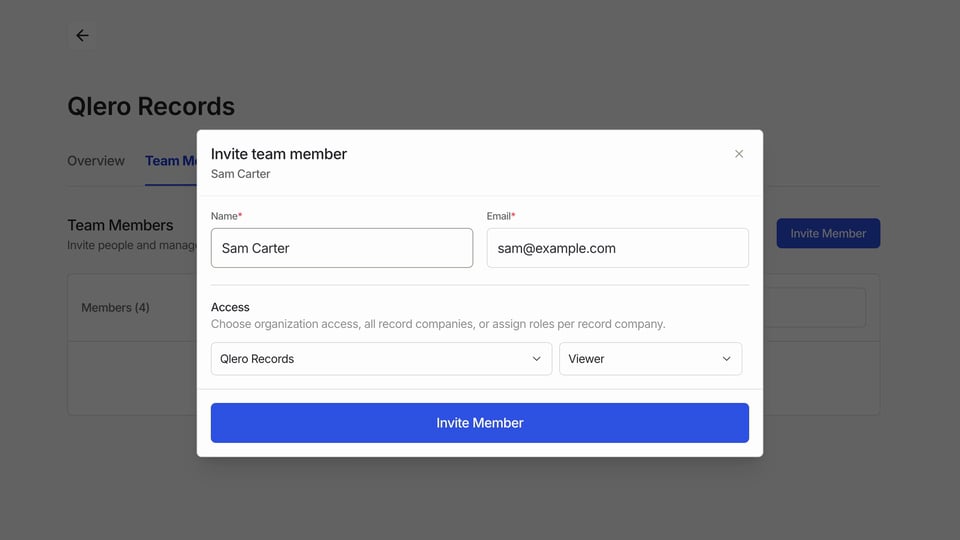
Click Settings › Organization Settings, then Team Members. Click Invite Member.
2
Enter the person's details
Enter their Name and Email, for example Sam Carter and
sam@example.com. Use the email address they’ll sign in with.3
Choose access and a role
Under Access, select the record company or companies, then choose a role. For Sam to check statements for Qlero Records, select that company and Viewer.Choose All record companies only when the same role should cover every current and future company in the organisation.
4
Click Invite Member
Qlero adds the member to the list with their access assignment and sends an invitation email. A new user receives a link to set their password.
Artist Portal access
Artist Portal access is assigned separately for each payee. Give artists and their representatives access to the payee they represent. A Viewer team role covers record-company data beyond that payee and is usually too broad for this purpose. Follow Adding payee users to your payees to add or remove access from a payee’s Users tab.Next steps
- See what a payee can view in Artist Portal statements.
- Set up the records your team will work with in First-time setup: payees, accounts, contracts and terms.