

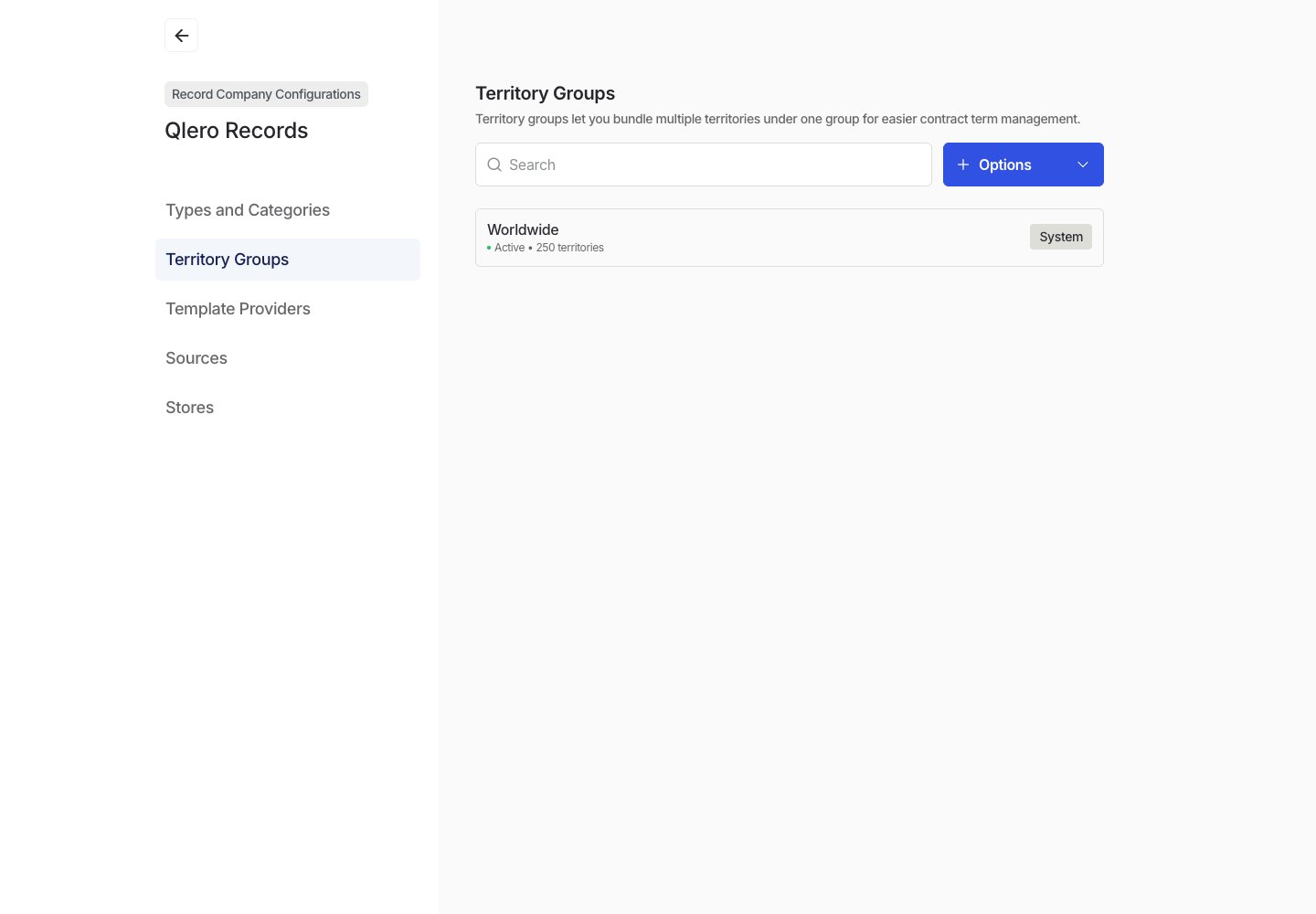
Open territory groups
- Open the record company you want to configure.
- Go to Configurations.
- Select Territory Groups.
System and custom groups
System territory groups are provided by Qlero and are read-only. Custom groups belong to your record company and can reflect territory sets used by your business.Create a territory group
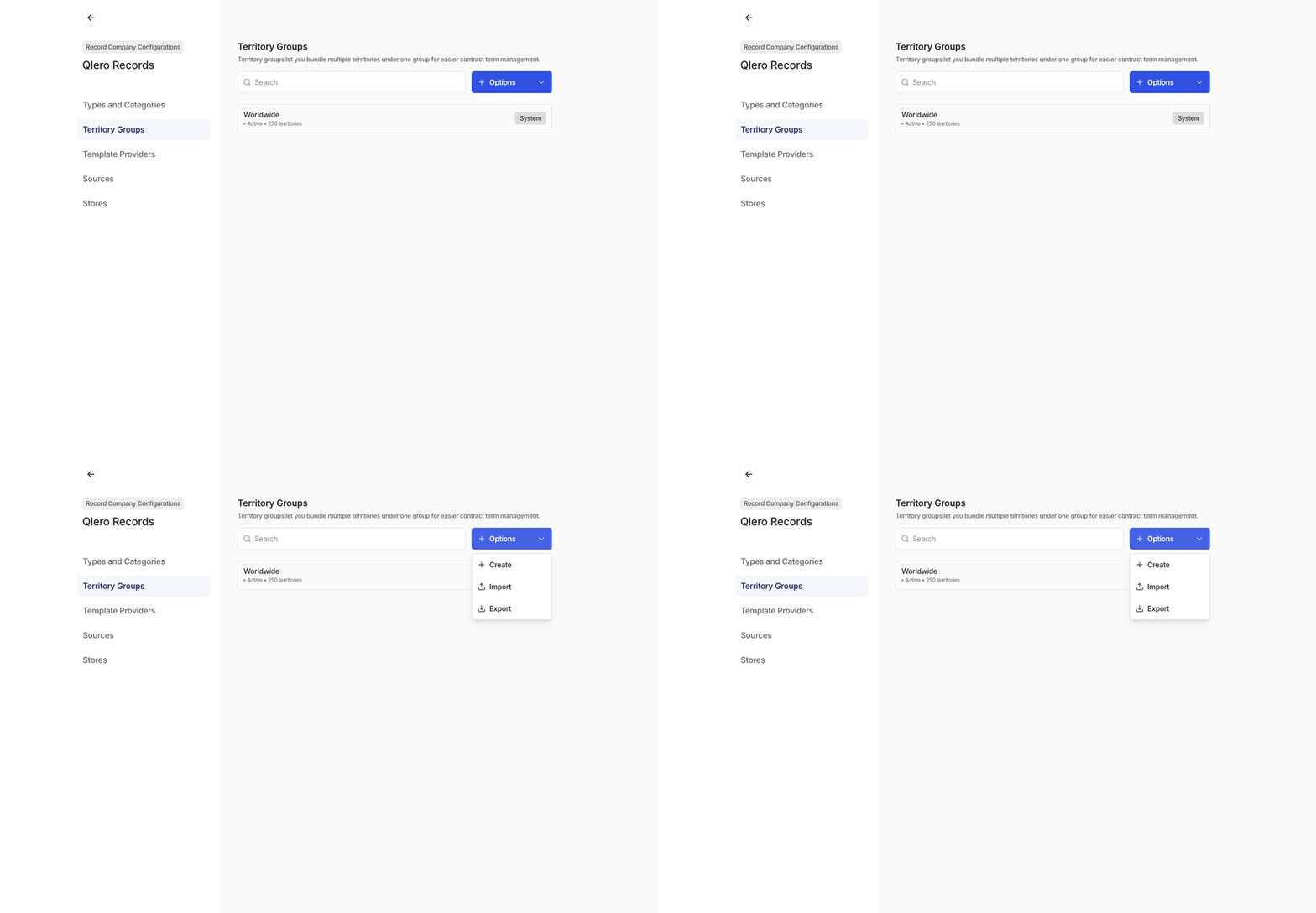
- Select Options.
- Select Create.
- Enter a clear name for the group.
- Select the territories that belong in it.
- Save the group.
Edit a territory group
- Find the custom group you want to change.
- Open its row menu and select Edit.
- Update the name or selected territories.
- Save your changes.