

Creating payees, accounts, contracts, and terms requires write access to Agreements, and assigning contracts to repertoire requires write access to Repertoire. If you don’t see the Create New buttons, ask your administrator. See User access and roles.
Create a payee
1
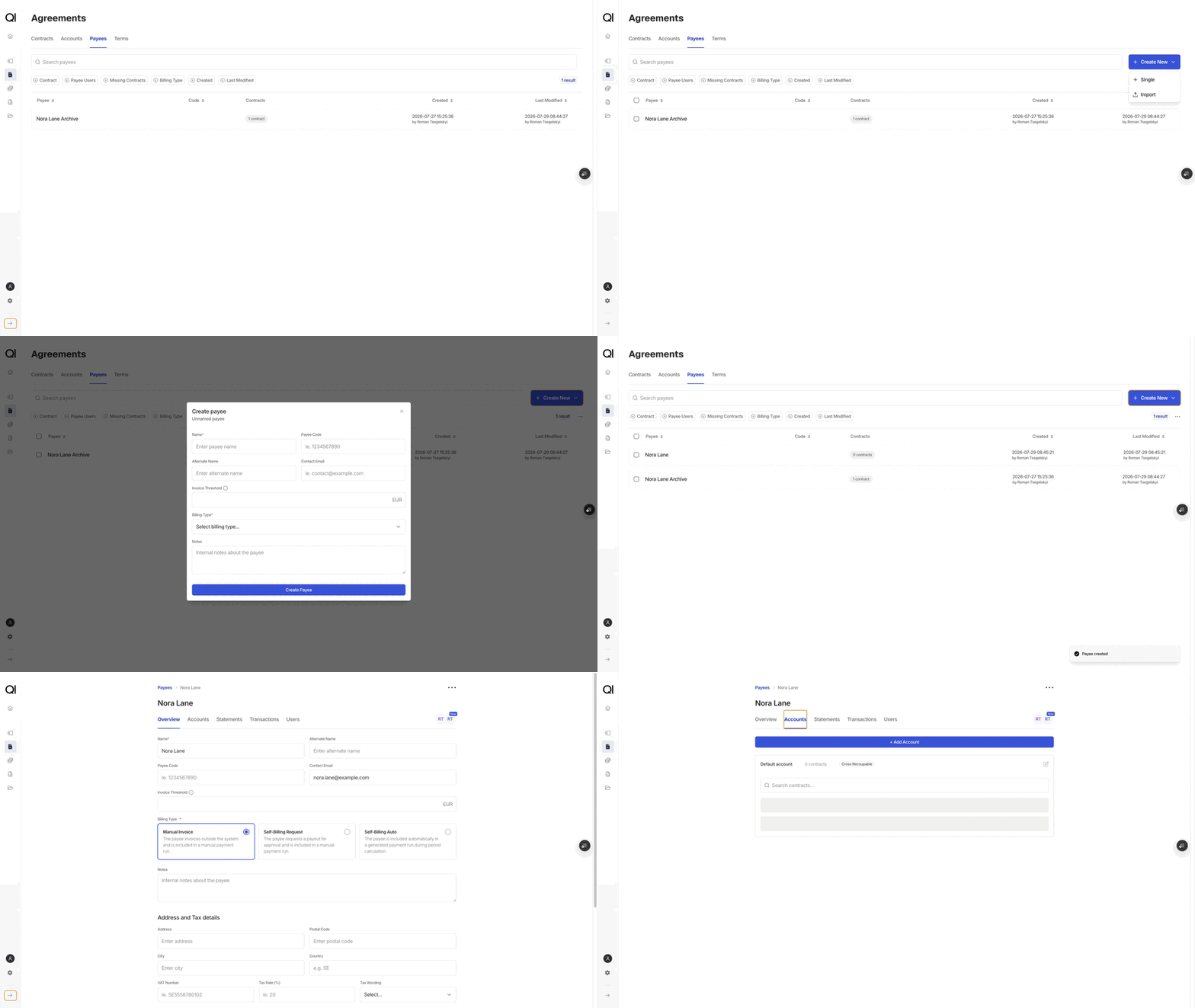
Go to Agreements › Payees
Click Create New, then choose Single. The Create payee form opens.
2
Enter the details
Name is the only detail you always have to fill in, and it must be unique; Qlero tells you if the name is already taken. Payee code, Alternate name, and Contact email are optional.Invoice threshold is the minimum balance before the payee is paid. Leave it empty to use your record company’s default; when there is no default, the field is required.Depending on how your record company is set up, you may also see:
- Reporting currency. Shown when your record company uses multiple currencies. The payee is reported and paid in this currency, and it cannot be changed once the payee has financial activity, so choose carefully.
- Billing Type. How the payee is invoiced: Manual Invoice, Self-Billing Auto, or Self-Billing Request. Choosing Self-Billing Auto adds required Address and Tax details and Bank Information sections, because Qlero generates this payee’s invoices for you.
3
Click Create payee
The payee appears in the list. Qlero also creates its first account automatically, named Default account.
Add accounts, if you need them
The Default account is all most payees need. Create another only when deals must stay financially separate; see when to give a payee more than one account. Go to Agreements › Accounts, click Create New › Single, and select the Payee; from the payee’s own Accounts tab the payee comes preselected instead. Give the account a Name (unique within the payee) and optionally set Cross-recoupable and a Threshold.Create a contract
1
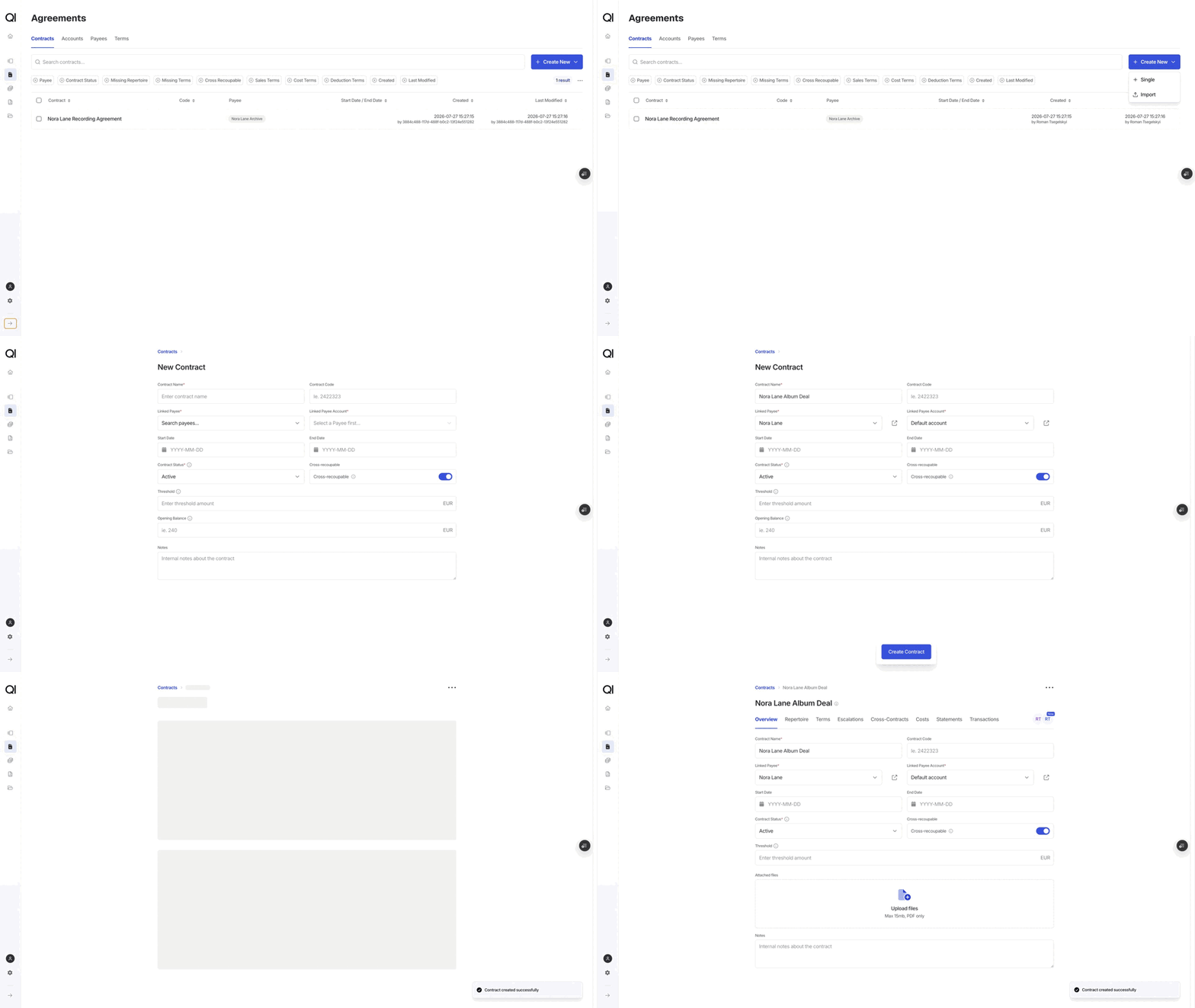
Go to Agreements › Contracts
Click Create New, then choose Single. The New Contract page opens.
2
Name it and link it
Contract name must be unique within your record company. Select the Linked Payee first; Linked Payee Account unlocks after that, and when the payee has only one account it is selected for you.
3
Set the deal settings
Most of the remaining fields have sensible defaults. Leave Contract Status on Active so the contract is included whenever royalties are calculated, and keep Cross-recoupable on unless this deal’s losses must stay separate from the account’s other contracts (see separate recoupment pools). Start Date and End Date are for your own records; they do not limit which sales the contract earns on.Change these only when you need them:
- Accounting Period Type. How often the contract accounts: Monthly, Quarterly, Half-Yearly, or Yearly. The field appears when your record company allows more than one type, and all contracts on one account must use the same type.
- Threshold. Optional. The contract’s closing balance must reach this amount before it transfers to the account.
- Opening Balance. Use this to carry in the deal’s current position from a previous system, with an unrecouped position entered as a negative amount. The amount is in the payee’s reporting currency. You can also add it later as an Opening Balance transaction, as long as the contract has no other transactions yet.
4
Click Create Contract
You land on the contract’s own page, ready for terms and repertoire.
Next steps
The new contract does not earn anything yet. It needs terms, which tell it what to pay, and repertoire to earn on; until a matching term is in place, Qlero holds the contract’s income and costs aside in suspense instead of calculating them.- Attach the terms that price the deal: Creating and linking contract terms.
- Assign the contract to tracks and releases and set its participation rates: Assigning contracts to tracks and releases.