

Adding or removing payee users requires view and write access to Agreements. If you don’t see + Add Payee User or Remove, ask your administrator. See User access and roles.
Add a payee user
1
Open the payee's Users tab
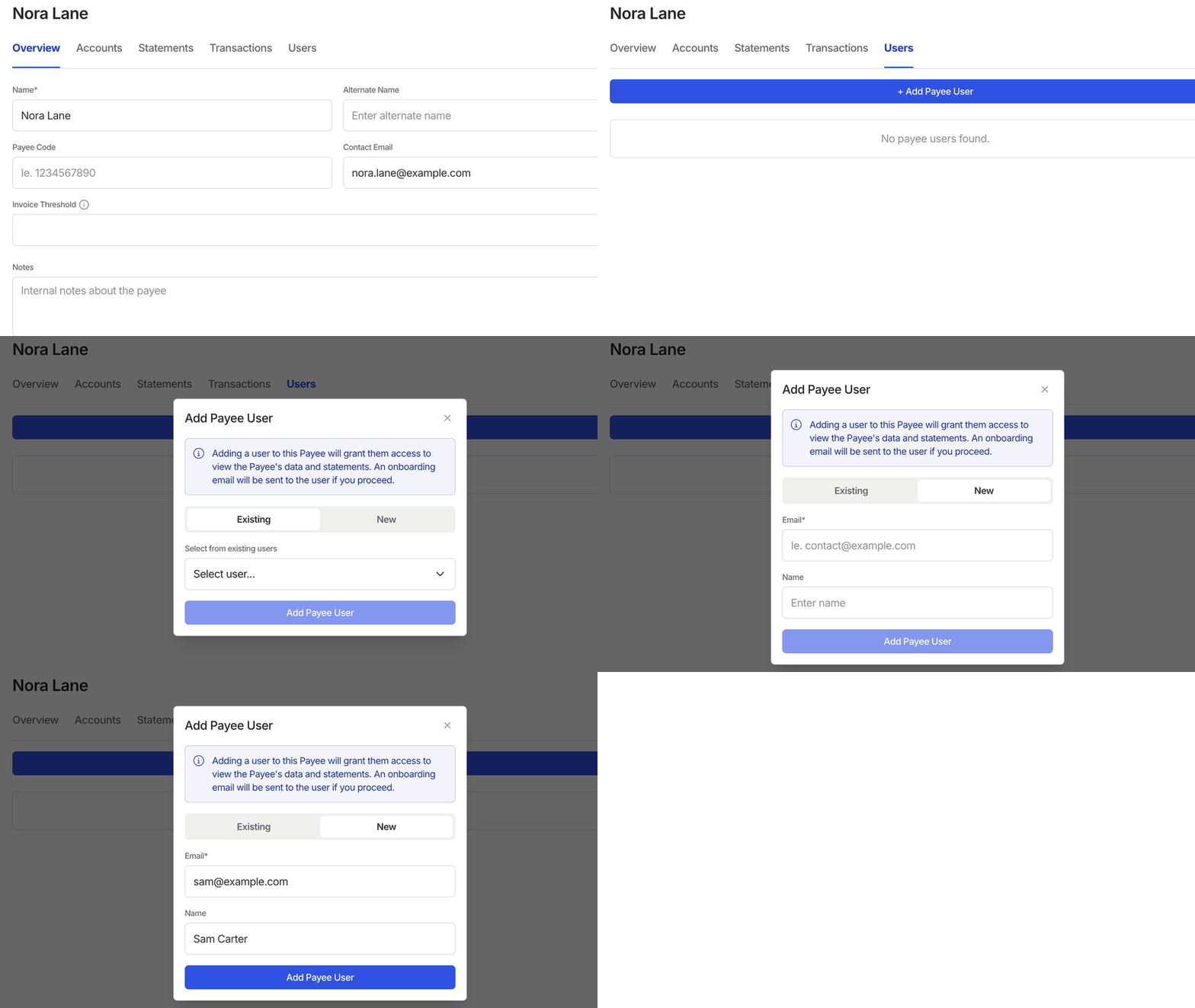
Go to Agreements › Payees, open Nora Lane, and click Users. Click + Add Payee User.
2
Choose the person
Click the Existing or New tab.Existing. Choose someone from Select from existing users. Users already linked to this payee are left out of the picker.New. Enter the person’s Email, for example
sam@example.com, using the address they’ll sign in with. Name is optional, but entering Sam Carter makes the user easier to recognise in the list. Use this tab when the person isn’t in the Existing picker. If they already have a Qlero login under that email, Qlero links it to the payee.3
Add the user
Click Add Payee User. The person appears on the Users tab with their name and email, and Qlero sends an onboarding email.
Remove a payee user
On the payee’s Users tab, click the three-dot menu beside the person, choose Remove, then click Remove in the confirmation. The person disappears from the list. You can add them again later. If their login was deleted, they receive a new link to set a password.Next steps
- See what the user can view in Artist Portal statements.
- Manage access for colleagues in User access and roles.