Changing participation rates requires write access to Repertoire. If the buttons and fields on the tab are disabled, ask your administrator. See User access and roles.
Track-level and release-level assignments
You assign tracks and releases separately.- Track-level: for splits that differ per recording. Most streaming and download income lands here, matched on ISRC.
- Release-level: for income reported on the release as a whole, such as physical sales matched on barcode or catalogue number.
Assigning a contract
1
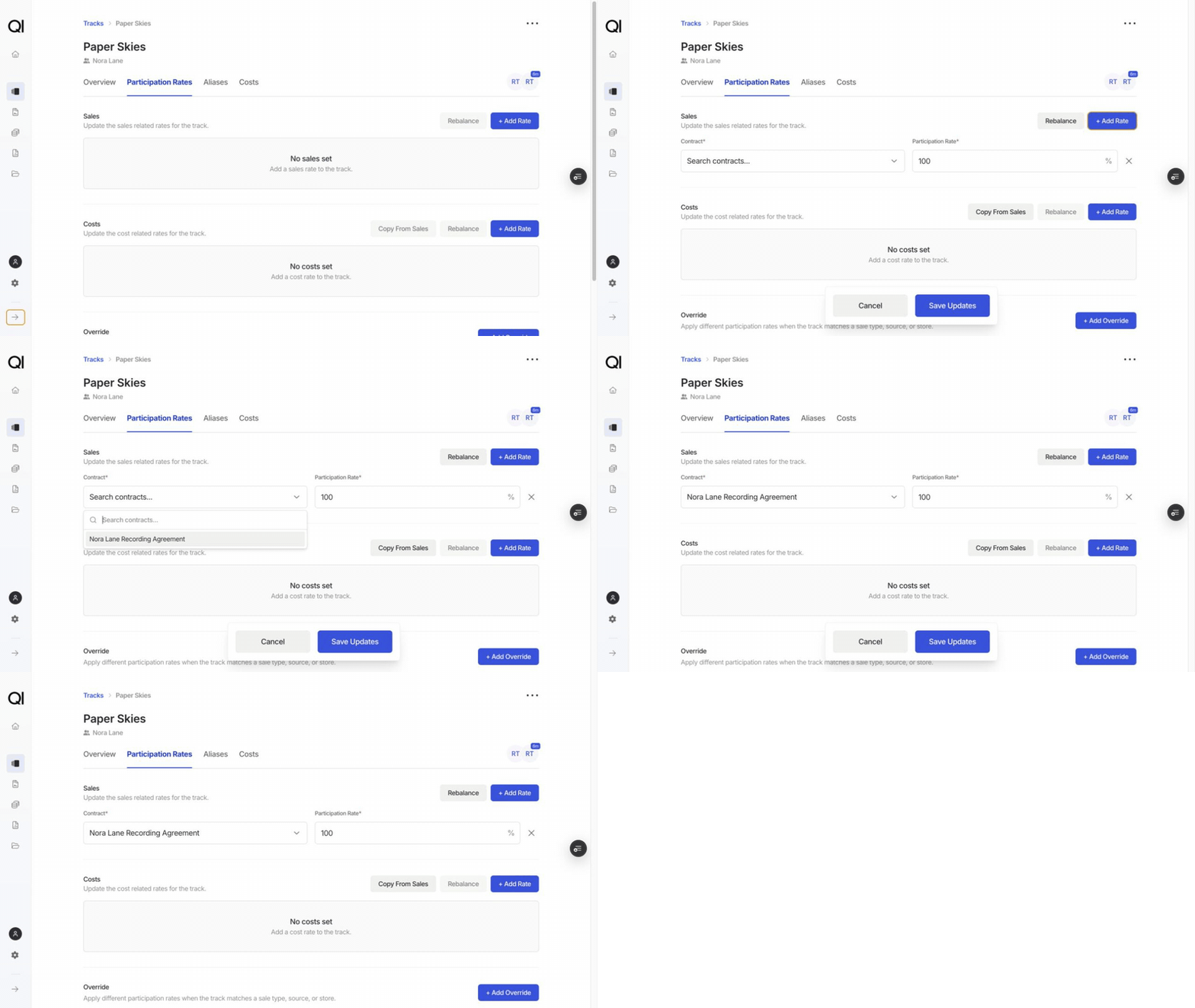
Open the track or release, then the Participation Rates tab
The tab has a Sales section and a Costs section. Each starts empty, showing “No sales set” or “No costs set”.
2
Add a rate
Click + Add rate in the section you want, search for the contract, and enter its Participation Rate as a percentage.Sales and Costs are separate sections, so a contract that shares in both needs a row in each. Within one section a contract can appear only once. A second row for the same contract shows “Contract already in use.”
3
Save
The save bar appears as soon as you change something. Nothing takes effect until you save.
What the participation rate means
The rate is the share of the track’s or release’s amount that goes to that contract. 100% sends the whole amount, 50% sends half. Qlero does not check that a section adds up to 100%. A section totalling less than 100% leaves the rest outside any contract.Filling rates faster
Three buttons fill a whole section in one click. Each one replaces what is already in that section rather than adding to it. Copy from Sales sits in the Costs section, and inside an override. It copies the Sales rates across unchanged. Rebalance splits a section equally between its contracts so it totals 100%. In the Sales and Costs sections it appears on tracks only. Inside an override it appears on both tracks and releases. Pro Rata appears on releases only. It removes the need to set each release by hand. It reads the contracts already on a release’s tracks and applies the way sales or costs are split across them to the release itself. This is what pro rating does here: it takes the proportions already set on the tracks and carries them up to the release.Overrides
An override applies a different set of rates when income matches one sale type, source, or store. Reach for it when a single channel is carved out of the main deal, for example a distributor whose revenue splits differently or if you want you want to have different splits on sales with sale type set to Neighbouring Rights.1
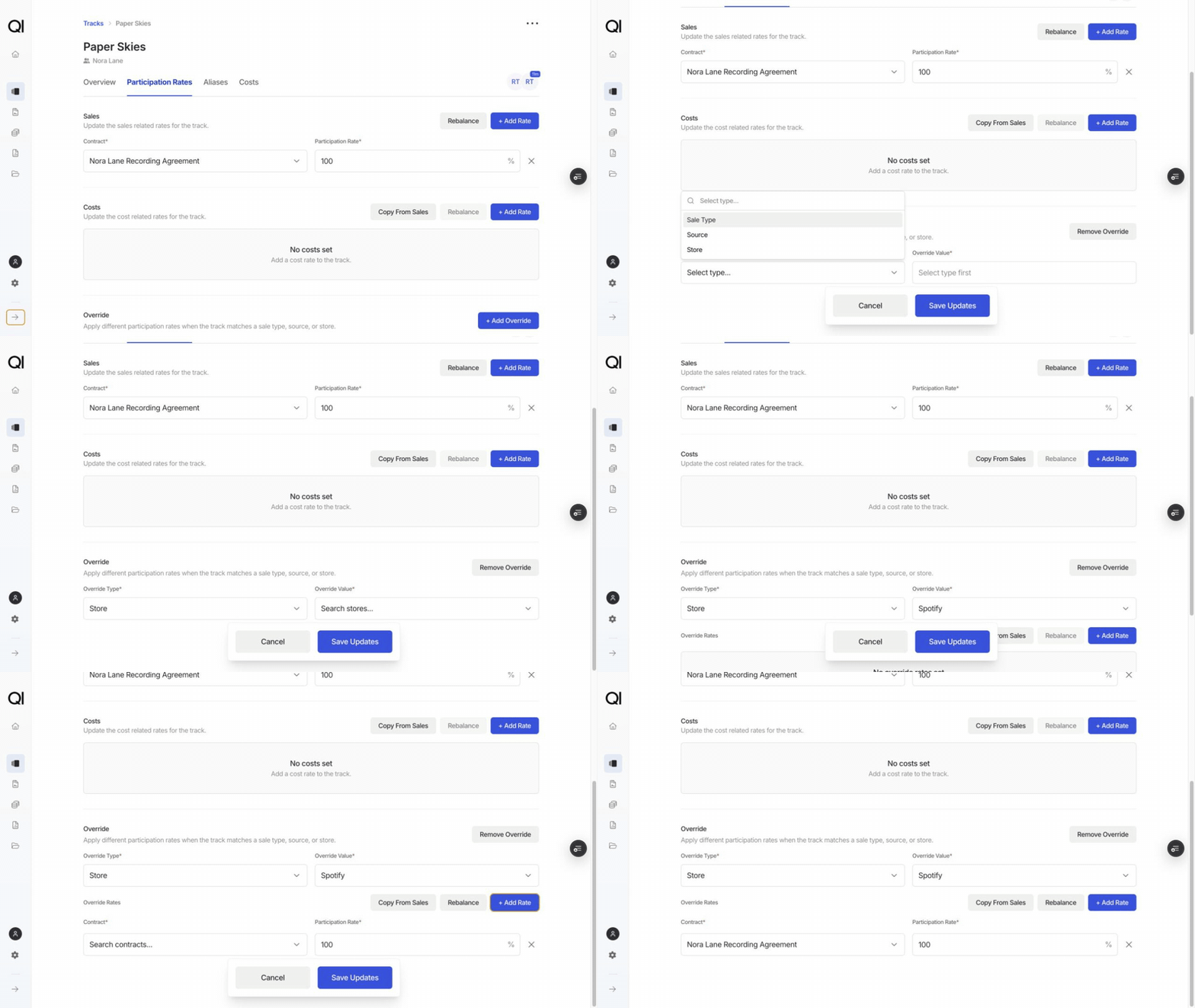
Click + Add Override
The override sits below the Sales and Costs sections.
2
Choose an Override Type and Override Value
The type is Sale type, Source, or Store. The value list then narrows to that type.
3
Add the override rates
Override Rates works like the sections above, with its own + Add Rate, Copy from Sales, and Rebalance. Here Copy from Sales brings in the standard Sales rates, replacing whatever the override already held.
Assigning in bulk
1
Select rows on the Tracks or Releases page
Select a page of rows, or the whole filtered set.
2
Choose a bulk action
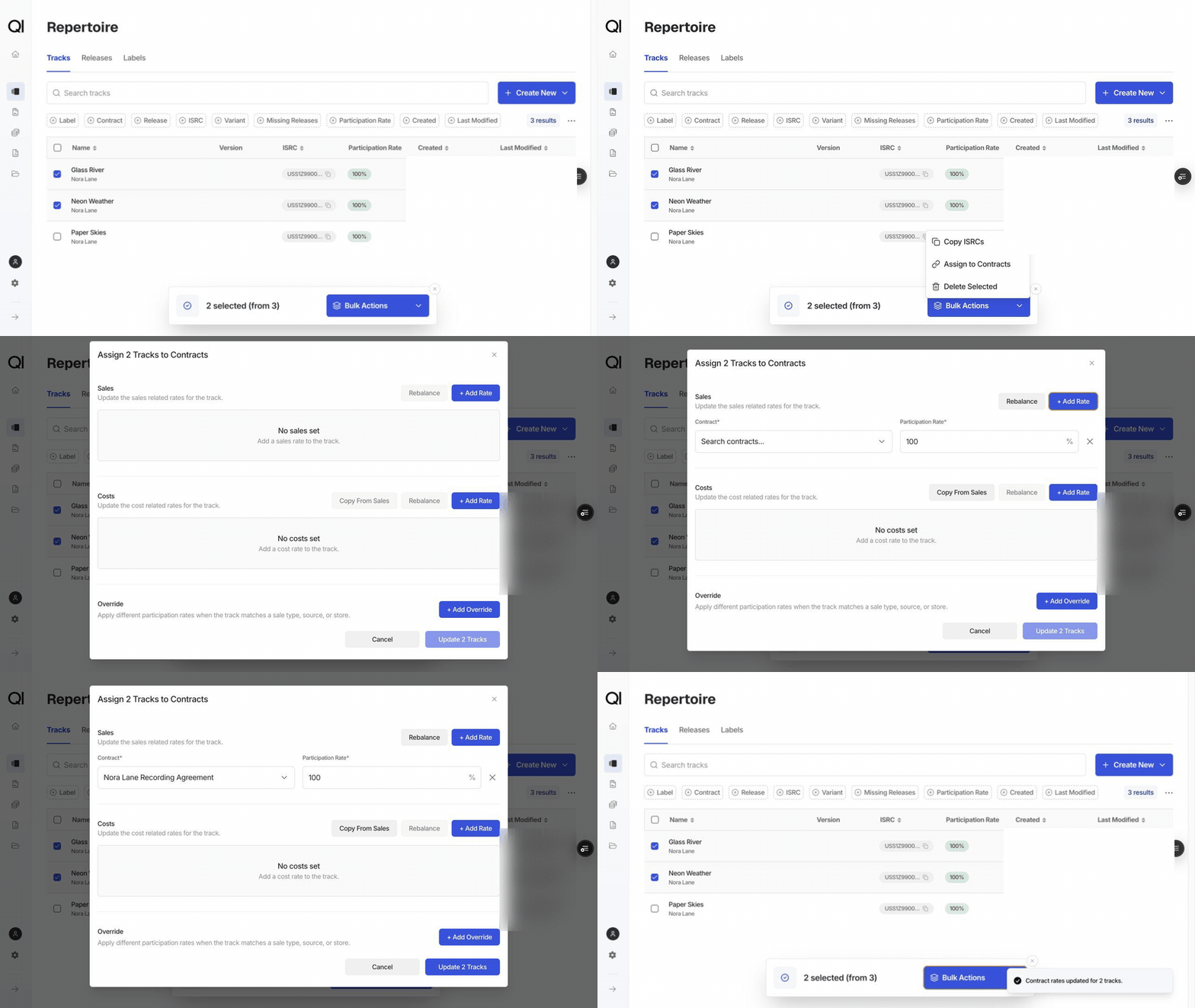
Assign to Contracts opens the same Sales and Costs form and applies it to every selected item. It adds to what each item already has rather than replacing it, and a contract already in the same section takes the new rate.Assign Pro Rata, on releases, derives each release’s rates from its own tracks. Choose Sales, Costs, or Both Sales and Costs.
3
Watch it run
Large selections run in batches with a progress toast you can cancel. Assign Pro Rata then reports which releases it assigned, partially assigned, and skipped.