You can delete a track or release that has never earned anything. Once income or a cost has landed on it, Qlero keeps it, because the figures already reported against it still have to add up.
Deleting requires write access to Repertoire. Without it the Delete option does not appear.

Deleting one track or release

1

Open the track or release

From Repertoire › Tracks or Repertoire › Releases, click the row.
2

Open the ⋯ menu

It sits at the top right of the page, next to the breadcrumb.
3

Click Delete and confirm

The dialog names the track or release so you can check you have the right one. There is no undo, and no trash to restore from.
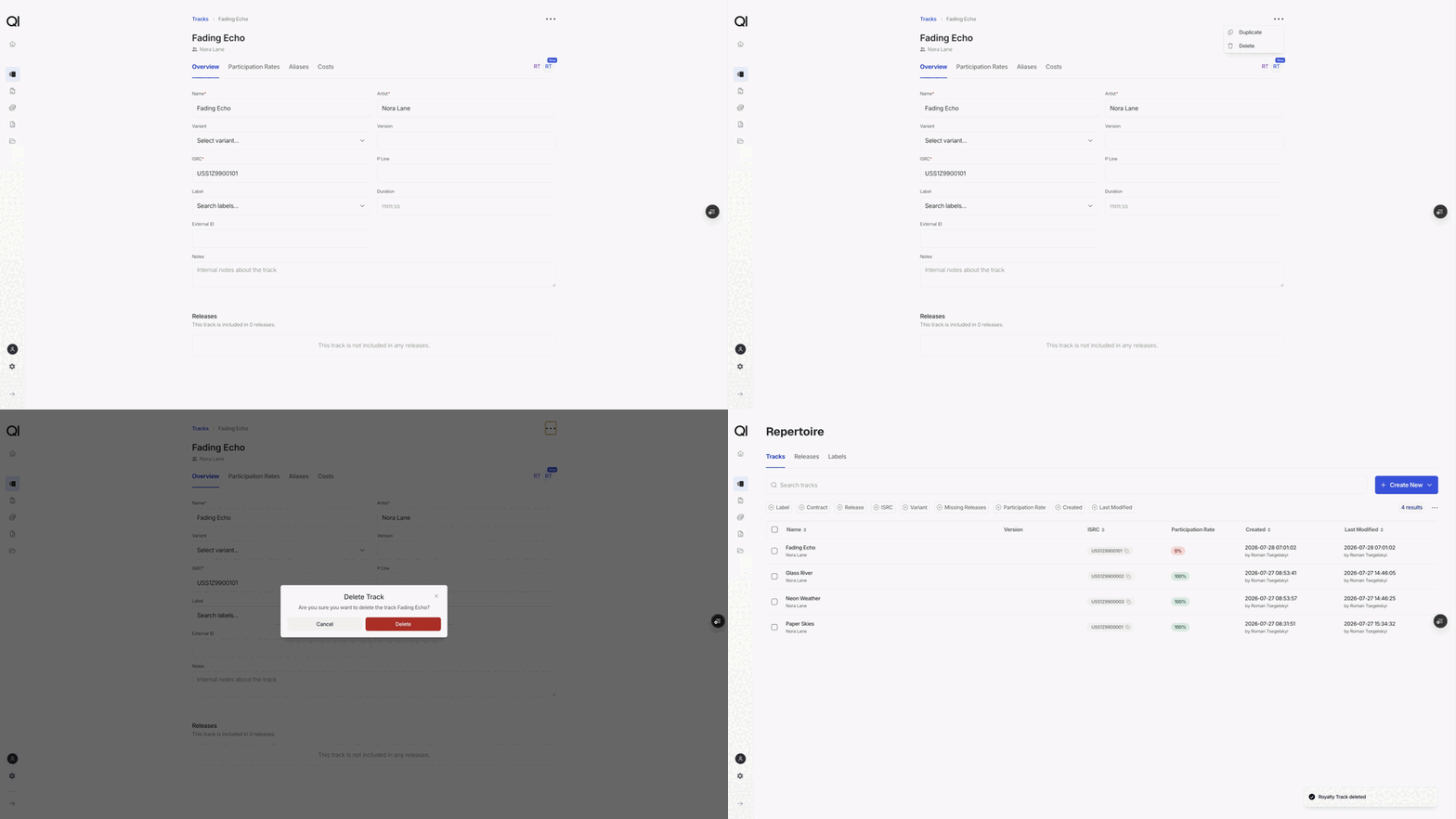
You land back on the list. If the delete is blocked, you stay on the page and Qlero tells you why.

Deleting several at once

1

Select the rows

Tick rows on the Tracks or Releases page. Filter first if the set you want is easier to describe than to click. See Using filters.
2

Choose Delete Selected

Confirm the count in the dialog.
3

Watch it run

Qlero deletes one item at a time and shows progress. Cancel stops it, and everything already deleted stays deleted.
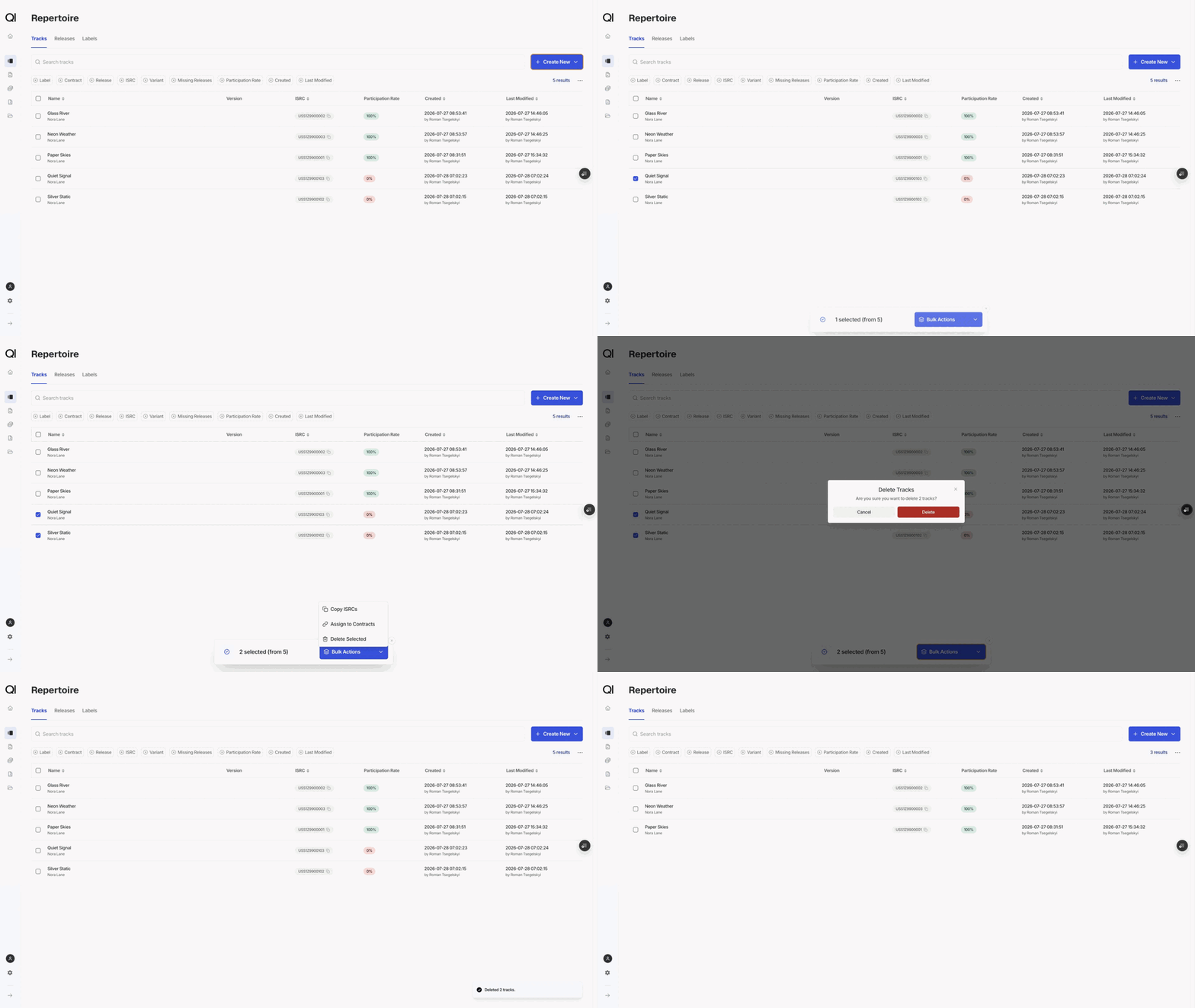
Ticking rows by hand covers up to 100 at a time. Select all has no such ceiling. It resolves every item matching the current filter and deletes them all, so check the count in the confirmation dialog before you agree to it. Items that cannot be deleted are skipped rather than stopping the run, and the result gives you a count of each. It does not say which ones failed. After a Select all run, the list itself tells you. Everything deletable is gone, so whatever still matches the filter is what Qlero refused. Open one to see why. After a hand-picked selection there is no such shortcut, because the rows still on screen include plenty you never selected. Note what you picked before you start if you need to account for the difference.

When deletion is blocked

Two things keep a track or release in place:
  • It appears in a sales file. Any sales row matched to it counts, whether or not a period has been calculated on it.
  • It is attached to a cost. Costs recorded against the track or release count the same way.
There is no way to force past either, and there is no archive or hide. If you want the item out of the way, filter it out of your working views instead, and correct its details if they are wrong.

What deletion removes

Deleting a track removes its aliases, its participation rates and overrides, its artist links, and its place on every release that included it. The releases themselves stay, minus that track. Deleting a release removes its aliases, its participation rates and overrides, its artist links, and the links to the tracks on it. The tracks themselves stay, and are still available for other releases.

Deleting from Excel

The repertoire import can delete too. Set the Action column to Delete and give the item’s Id, which you get from an export. The same rules apply, so a row for a track that appears in a sales file fails, and a failed row blocks the whole import rather than just itself. See Importing and exporting via Excel.

Next steps

Before deleting duplicates, check whether an alias would serve you better. Keeping one track and pointing the second identifier at it preserves the sales history. See External IDs and aliases.