

Viewing sales files requires view access to Sales Files (+ Sales Explorer); changing, downloading, archiving, or deleting them from these pages also requires write access. Exporting file records also requires write access to Exports. If you don’t see Sales Files, the edit controls, the file menu, or export options, ask your administrator. See User access and roles.
Sales file overview
Go to Income › Sales Files, find the sales file by name or invoice number, and click its name. Overview brings together its sales totals, row counts, status, and file details. Sales totals. The amount cards show imported totals and what has been reported, remains available, or is held in suspense. See the Sales file glossary for their definitions. File details. The right side shows the template, default dates, exchange rates, and Included in periods. The Select target period field helps organise the file for a reporting cycle. See Target period, sale date and transaction date for how these differ from the period that actually reports the file.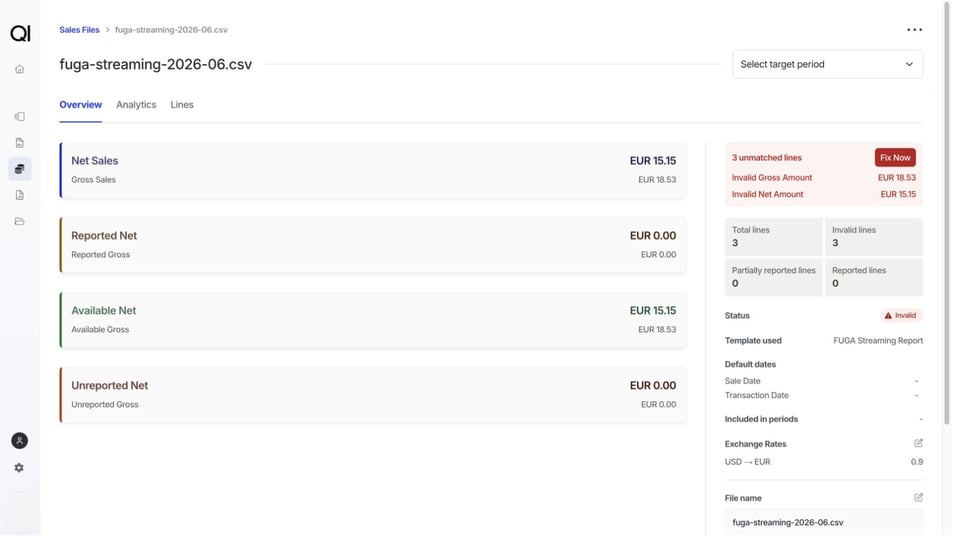
1.
Add or update exchange rates
Sales in another currency need an exchange rate to convert their amounts into the file currency. A missing rate leaves the affected rows invalid. On Overview, click the pencil beside Exchange Rates, enter the required rate, and click Save. The form saves the whole set of rates, so keep every rate the file still needs. Use Revalidate vs re-import to apply a missing rate or correct one already used by valid rows.Revalidate or re-import
Use Revalidate vs re-import to choose the right action after a correction, understand its effect on linked periods, and apply it to one or several files.Download or export
Download the original sales file. Open the file’s menu and click Download. You get the original sales file with its current name. Changes to mappings, dates, and exchange rates aren’t written back into it. Export file records. Use Export Filtered beside the list filters, or Export All when no filters are set. The spreadsheet contains one record per sales file, with file names, amounts, and other details. It doesn’t contain the sales rows inside each file. Export Selected appears when you select only part of the result. Click View Export in the confirmation, then download the spreadsheet when processing finishes.Archive or delete
Archive a legitimate sales file when you want it out of the everyday list. It keeps the file, its sales data, and its period associations. Click Archive in the file’s menu. To restore it, filter Archived to Yes in Sales Files, then click Unarchive in its menu. Use Delete for a duplicate or unwanted import. Click Delete in the file’s menu, then confirm Delete.Next steps
- Match tracks and releases with Resolving invalid lines.
- Understand the remaining rows with Sales row statuses.