

Fixing templates requires view and write access to Templates. If the template fields are disabled or you don’t see Save & Exit, ask your administrator. See User access and roles.
Find what changed
Compare the problem file with one that worked. Start with one row whose amount you can recognise; it’s easier to spot a wrong column there than in a full statement total. The template isn’t detected. A changed header or file name can stop automatic matching even when the columns still read correctly. Check Criteria matching on the template’s Summary tab. You can select the template manually on import once you’ve confirmed it fits the file. The wrong values appear, or rows are missing. Check the sheet, header and first data row, then the column mappings. A moved amount column, a new date format, or a totals row can require a template change. The values are correct but Qlero doesn’t recognise them. Use Custom mappings for provider-specific source, store, territory, format, sale type, or currency values. For unmatched repertoire or missing dates and exchange rates in an imported file, start with Resolving invalid lines.Correct the template
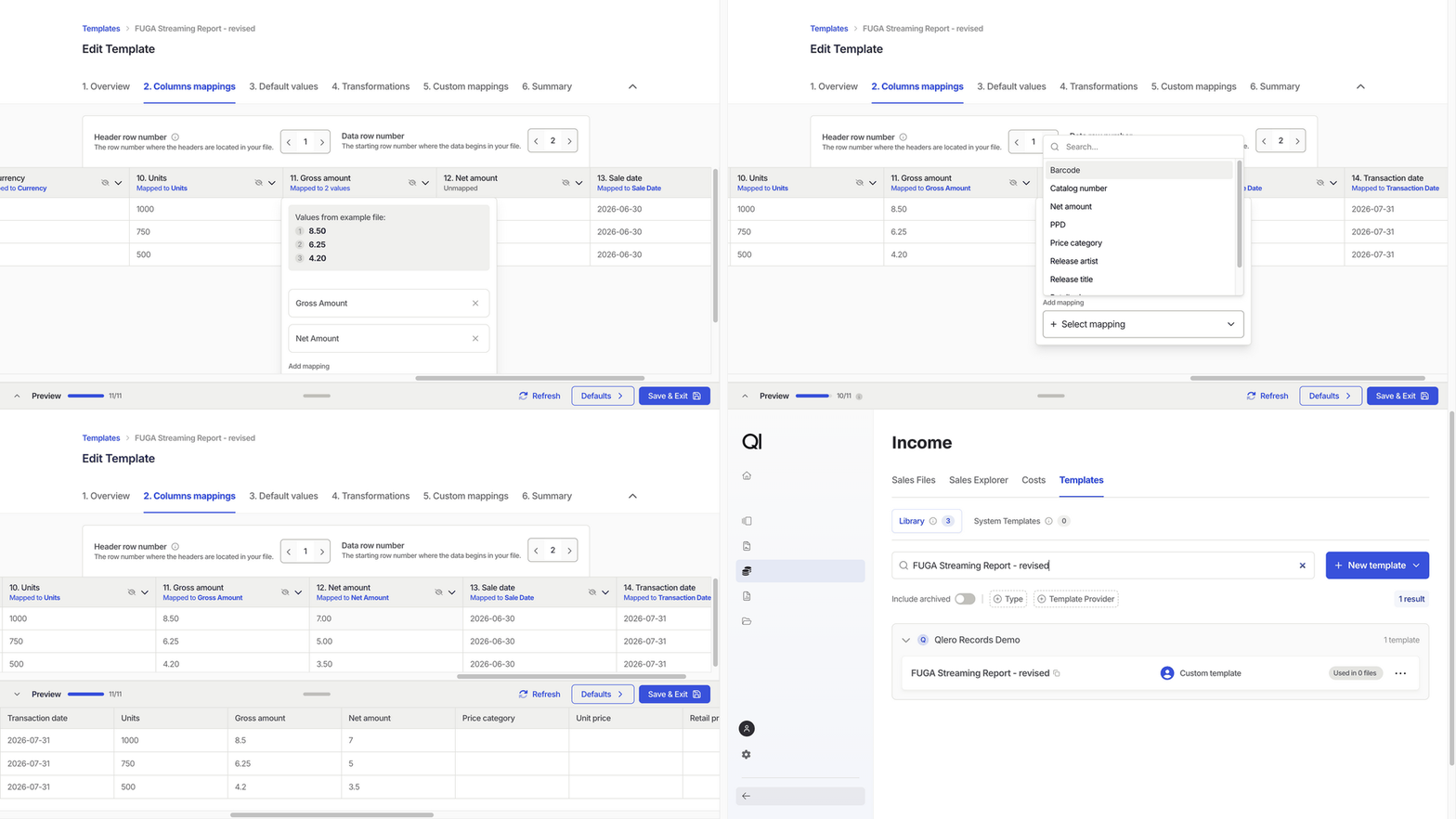
System templates have a fixed structure. You can edit their Custom mappings after adding them to your Library, on any plan. To change their columns or processing rules, duplicate the template into a custom copy. If you’re using Lite and a system template no longer fits the provider’s file, contact Qlero support. If you’ll still receive files in the old layout, keep a separate template for each layout. In Income › Templates › Library, open the template’s card menu and click Duplicate, then open the copy and give it a recognisable name. In this example, the custom copy FUGA Streaming Report - revised reads the gross column as Net amount. The first row contains EUR 8.50 gross and EUR 7.00 net; the correction should make its net value7.00.
Creating and editing custom templates is available on Pro and Enterprise plans.
1
Open the template and the problem file
Go to Income › Templates › Library and click the template’s card. On Overview, click Replace file if you need to load the file that exposed the problem. The editor accepts
.csv, .xlsx, and .xls examples up to 20 MB.For Excel, choose the Sheet number that contains the sales rows.2
Correct the row and column settings
Click Columns mappings. Set Header row number to the row containing the column names and Data row number to the first sales row.Open the gross column and click the Remove mapping cross beside Net Amount. Then open the net column, click Select mapping, and choose Net amount. Keep Gross Amount on the gross column. For a date problem, choose the format that matches the file, such as
yyyy-MM-dd for 2026-06-30.3
Preview the correction
Expand Preview and click Refresh. In the example, the first row now shows net
7 instead of 8.5.The 11/11 counter means the required fields are configured. It doesn’t prove that the amounts are correct or that the rows match your repertoire; compare the preview with the source row.4
Save the repaired template
Click Summary. If the header or file name changed, update Criteria matching so Qlero still suggests the template. See the matching options in the Template glossary.Click Save & Exit. The template returns to the Library, ready for future imports. Existing imported sales files keep their current data until you re-import them.
Apply the fix to an imported file
Use Re-import after changing columns or processing rules. It re-reads the stored original file with the corrected template. If you only changed Custom mappings, use Revalidate to apply them to invalid rows instead. Replace file in the template editor only changes the example used to edit the template. It doesn’t import sales. Open the affected sales file and click Re-import in its menu at the top right. Select the repaired template, or the new copy if you made one. Follow Revalidate vs re-import for the procedure and access requirements. When processing finishes, Lines shows the newly read rows. For the example, the first row’s net amount is now EUR 7.00. A Ready file can still contain invalid rows, so resolve any remaining mapping or repertoire issues before reporting royalties.Next steps
- Use Resolving invalid lines for remaining value or repertoire matches.
- See Sales row statuses to understand the processed result.