

Creating costs and setting period exchange rates requires view and write access to Costs and Periods. Assigning the cost also requires view access to Agreements for a contract or Repertoire for a track or release. If you don’t see Create New or the pencil beside Exchange Rates, ask your administrator. See User access and roles.
First, record the cost in its invoice currency
Choosing a different currency is available on Pro and Enterprise plans. If the currency beside Amount can’t be changed when creating a cost, ask support to enable multi-currency for your record company.
Nora Lane artwork, Amount as 1000, Currency as USD, and Cost Type as Artwork. Assign it to the Harbor Lights release and click Create Cost.
The saved cost stays at USD 1,000. There is no exchange-rate field on the cost itself, and you don’t need a rate to save it.
Then, set the rate when preparing a period
When you’re ready to include the expense in royalty reporting, add it to an accounting period. The exchange rate belongs to the period. Qlero uses it during calculation to convert the cost before applying the contract’s allocation rates.1
Include the cost in the period
Start creating an accounting period. Select Nora Lane artwork in the Costs step, then click Summary.
2
Enter the rate under Summary › Exchange Rates
Fill in the pairs marked with a red asterisk. Each rate gives the amount of the destination currency for one unit of the source currency.For an illustrative rate of 1 USD = 10 SEK, enter
10 in the USD → SEK row. If the row shows SEK → USD, enter 0.1 instead.3
Save or calculate the period
Select Create Period and click Create to save the period and its rates for calculation later. Qlero confirms that the period is created.If the period is ready to calculate now, choose Create and Process Period (Calculation) before clicking Create. Saving alone doesn’t allocate the cost to contracts.
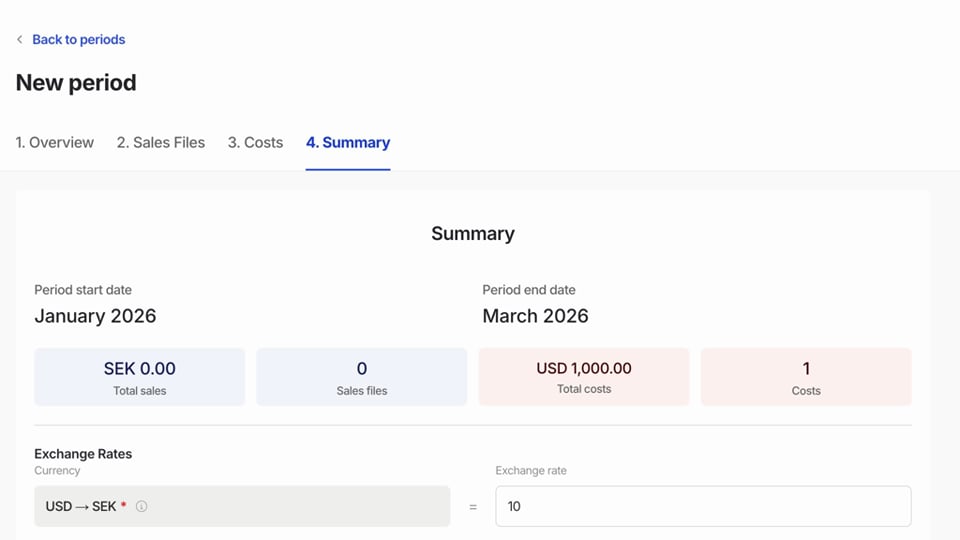
10 here before saving or calculating the period.