Viewing templates requires view access to Templates; creating them also requires write access. Viewing sales files requires view access to Sales Files (+ Sales Explorer); importing them also requires write access. If you don’t see New template or + Import Sales Files, ask your administrator. See User access and roles.
Choose the template path
Use a template already in Income › Templates when its provider and column layout match the file you receive. A custom template is the better choice when the same layout will arrive again and no library template maps it correctly.Creating custom templates is available on Pro and Enterprise plans.
Create a template for a new layout
The example file contains three sales rows for Nora Lane. It uses EUR amounts, dates inyyyy-MM-dd format, FUGA B.V. as the source value, and Spotify as the store.
The ISRC USS1Z9900001 must already belong to a track with a contract. In the example it’s Nora Lane’s Midnight Run in Qlero Records. Qlero matches on the ISRC and keeps the file’s Track title only as a description. If you haven’t set up a track and contract, create the track and complete the agreement setup first.
The walkthrough maps the file’s values to a format type named Track and a source named FUGA. Create them first if needed: see Customise types and groups and Template Providers, Sources and Stores. You can use equivalent existing configurations instead.
1
Start a custom template
Go to Income › Templates, click New template, then click From scratch. Enter
FUGA Streaming Report as the Template Name. Template Provider is optional; select FUGA when you want the Library to group templates from the same provider.2
Upload an example file
Upload the file whose layout this template will handle. The template editor accepts
.csv, .xlsx, and .xls example files up to 20 MB.The editor detects the header row and first data row. For the example file, leave Header row number on 1 and Data row number on 2.3
Map the file columns
Click Map Columns, open each header, and select the matching Qlero field. The required-field counter reaches
11/11 when every required field is configured.The Template glossary lists the required fields. Map ISRC too, so Qlero can match the rows to Nora Lane’s track. Track title and Track artist preserve descriptions from the file; they don’t replace the ISRC match.For both date columns, select yyyy-MM-dd as the format.4
Map custom values
Click Custom mappings. Under Format types, map the file value
Single Track to Track. Under Sources, map FUGA B.V. to FUGA.These mappings translate provider-specific values into configurations that exist in your record company. Use your own configured source and format type when following this process with a real provider file.5
Review and save
Click Summary. The summary shows 14 column mappings and
11/11 required fields. Uploading its header-based sample turns on Match by Header Row, so Qlero can recognise the same layout on import. Click Save & Exit. The custom template appears in the Library, grouped under its provider when you chose one.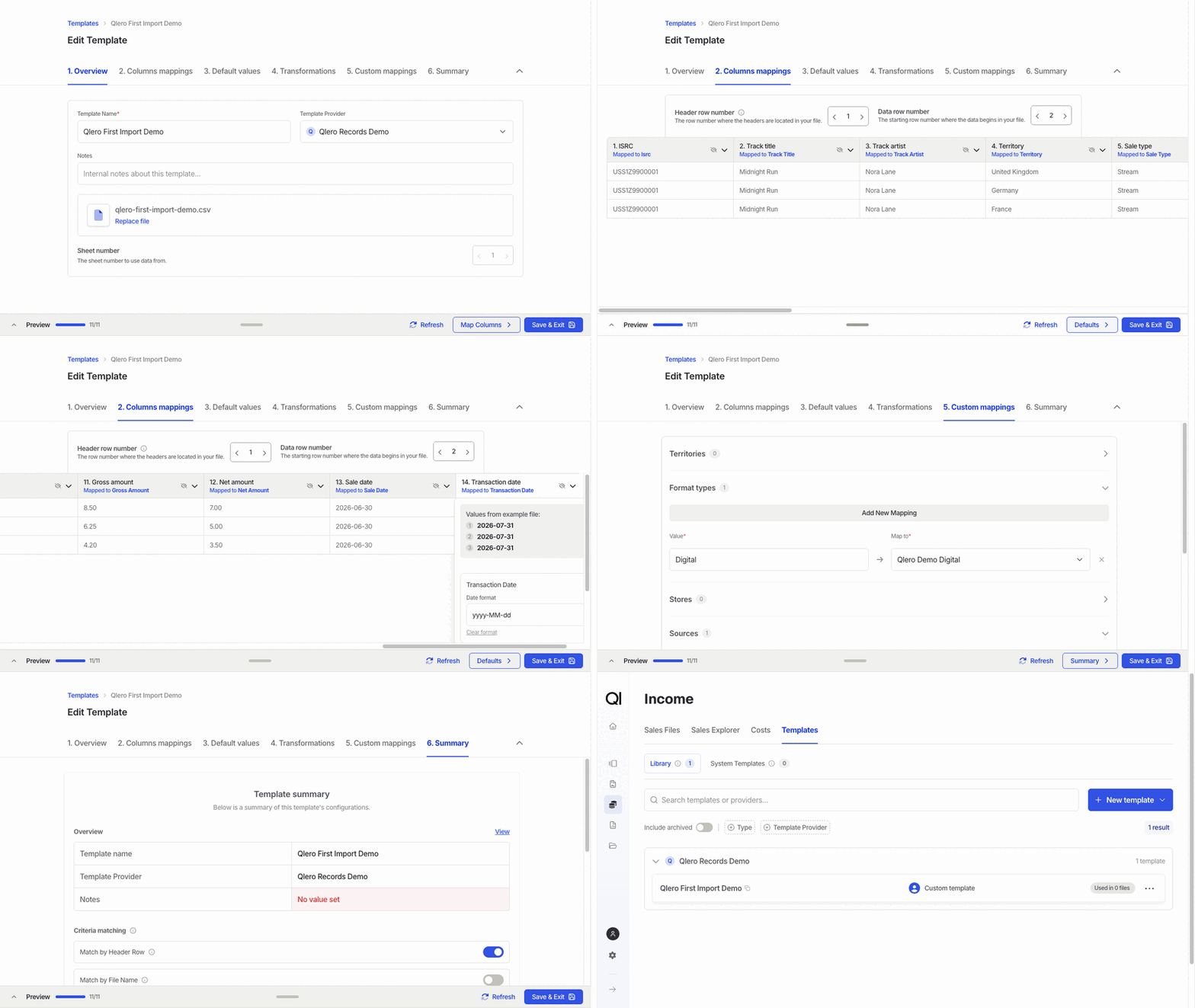
Import the first sales file
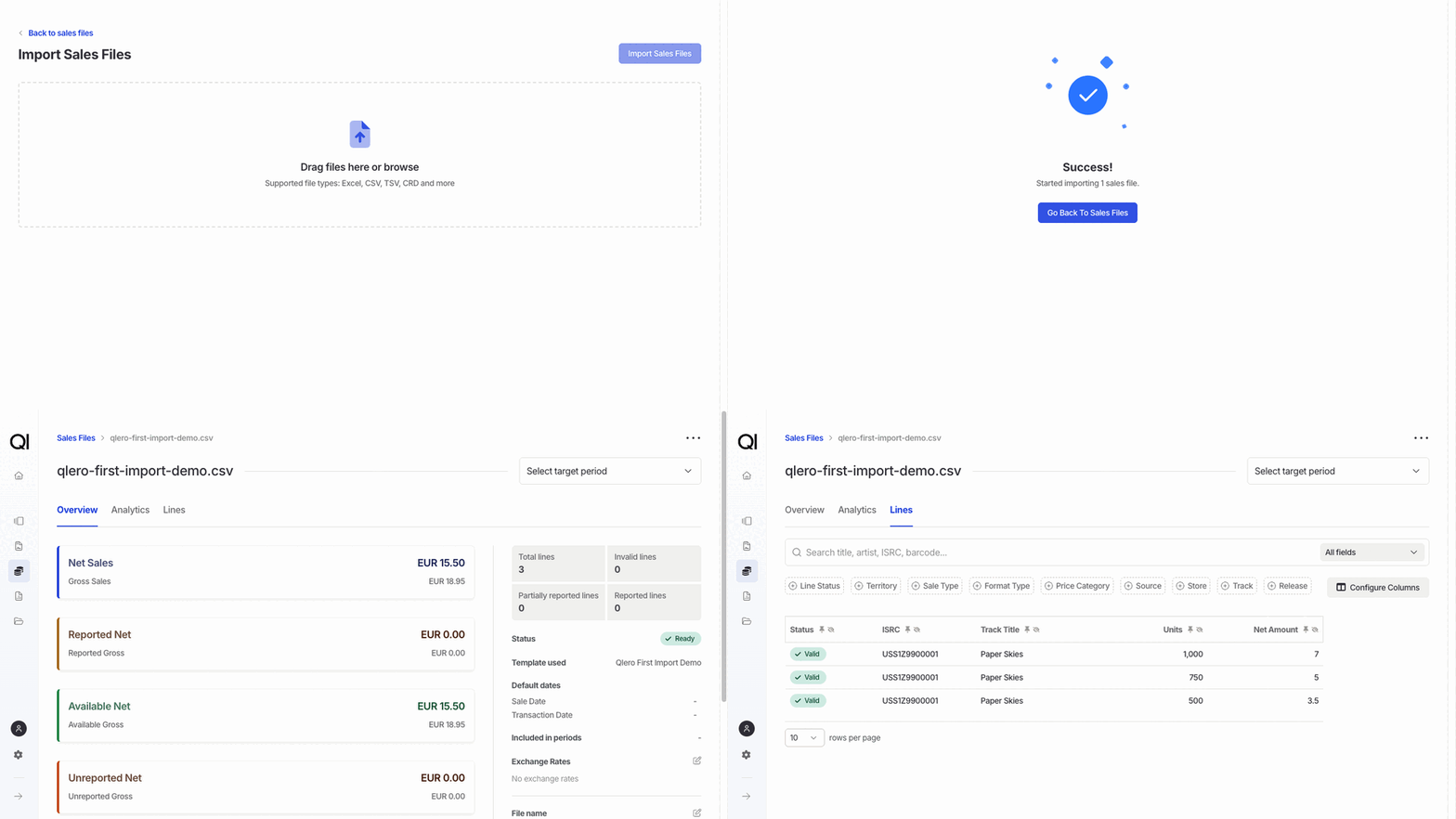
The file contains 2,250 units, EUR 18.95 gross, and EUR 15.50 net across the United Kingdom, Germany, and France. A few rows are enough to prove the layout and mappings before you use the template for a full provider statement.1
Open the import workspace
Go to Income › Sales Files and click + Import Sales Files. Add
fuga-streaming-2026-06.csv to the upload area.2
Confirm the detected template
Wait for template detection to finish. Select FUGA Streaming Report if Qlero doesn’t select it automatically.The file already supplies both dates and Currency, so you don’t need to enter fallback values in the import card’s Sale Date or Transaction Date fields. Target Period is optional and can be left empty for this first validation run.
3
Start the import
When the card shows Ready for import, click Import sales files. Qlero confirms that it started importing the file and returns you to the sales-file list when you click Go back to sales files.
4
Review the processed lines
Open the file after processing finishes, then click Lines. The file contains three rows; review their statuses and totals before including the file in a royalty period.The finished file has status Ready, three Valid lines, and EUR 15.50 net. Its ISRC resolves to Midnight Run. Valid lines with a matched track and contract can be included in a royalty calculation; invalid lines show what still needs attention.