

Importing and committing costs requires write access to Imports. The Income › Costs › Create New › Import shortcut also requires view and write access to Costs. With Imports access alone, start from Data Files › Imports. If you don’t see Import or Commit Import, ask your administrator. See User access and roles.
Prepare and upload the workbook
1
Download the template
Open Income › Costs, click Create New, then Import. Click Download Costs template.From Data Files › Imports, click New Import, open Need a template?, select Costs, and click Download template instead.
2
Enter one expense per row
Keep the sheet name Costs, the column order, and both header rows. Row 1 contains the column names, row 2 their descriptions, and your costs start on row 3.Leave Action as Auto and Id blank for new costs. For these two Harbor Lights expenses, both rows use Currency
EUR, Territory group Worldwide, and the existing Cost type Artwork:Enter the full expense as a positive Amount. Qlero applies participation rates and cost terms later, as described in Adding costs.
3
Assign each cost
Fill in exactly one of Contract, Release, or Track. The example uses Release; leave Contract and Track blank.
Use identifiers from your existing repertoire. A release title or track title won’t match these columns.Save the workbook as
.xlsx or .xls.4
Upload the workbook
Back in the import dialog, drop in the file and give it an Import Name, such as
Nora Lane costs. Click Import to start the analysis.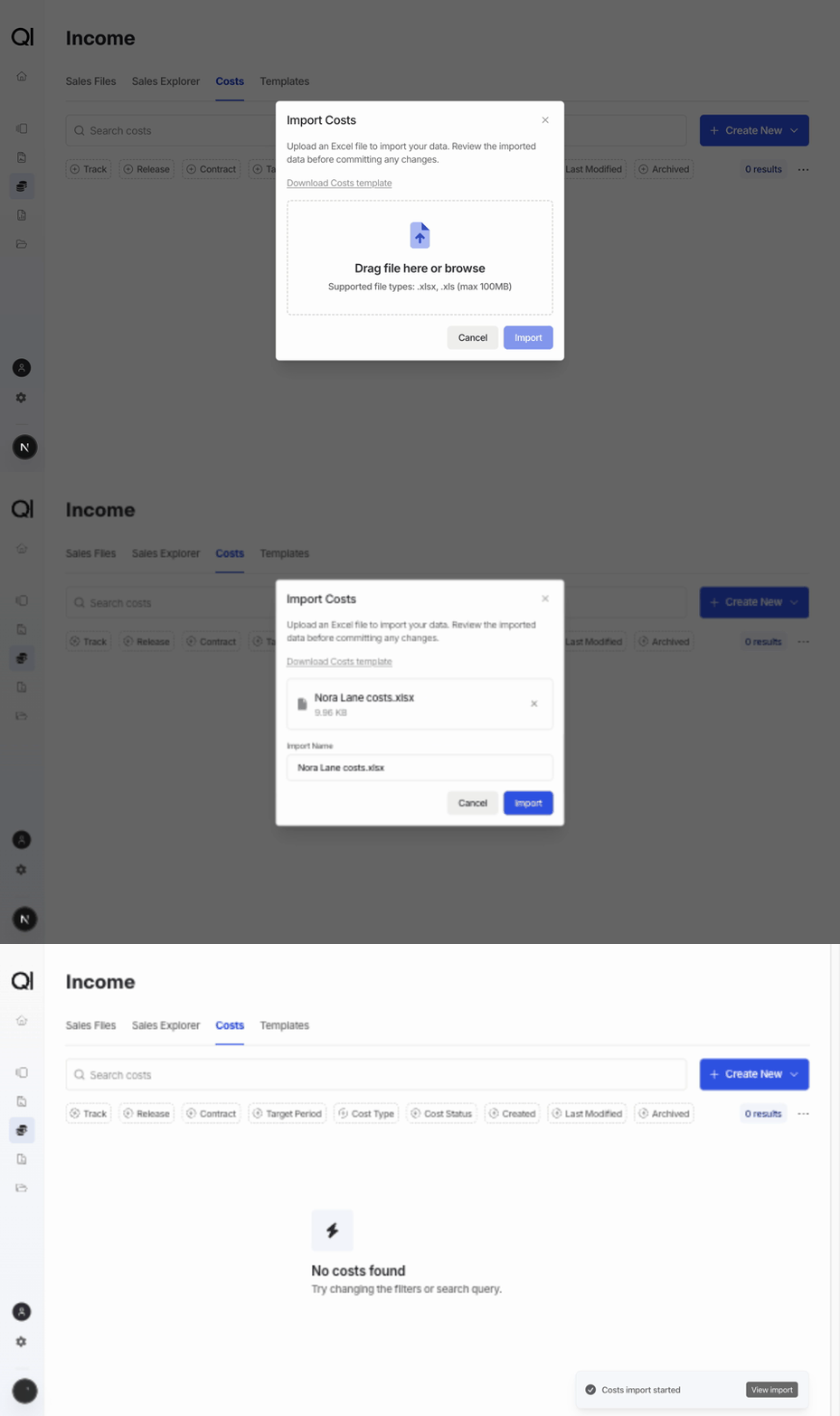
Review and commit
1
Open the analysis
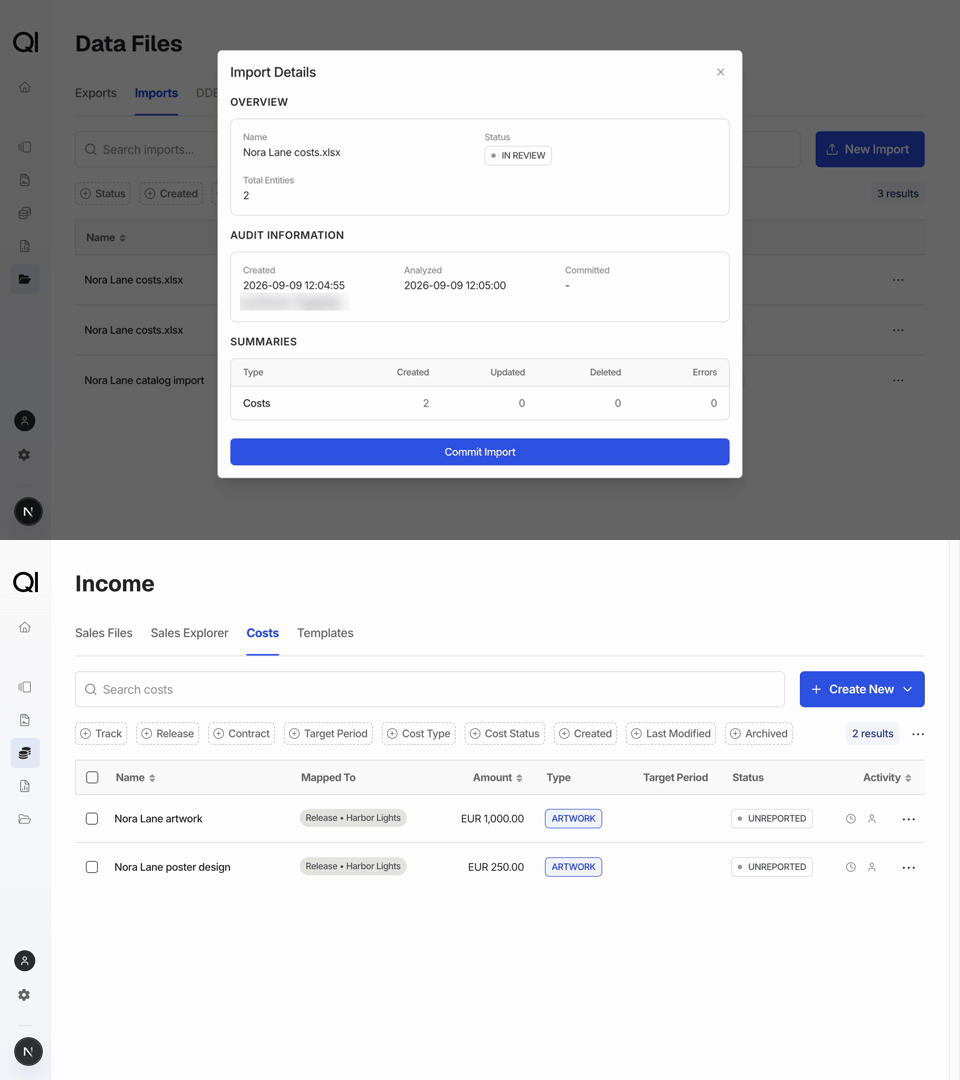
Click View import in the confirmation, or go to Data Files › Imports. When the import reaches In Review, open its ⋯ menu and click Review.
2
Review the proposed changes
Under Summaries, the example above should show 2 Created, 0 Updated, and 0 Deleted for Costs. If an intended update appears as a new cost, check the Id column before committing.If the status is Analysis Failed, open Review and read Errors for the sheet, source row, and problem. Fix the workbook and upload it as a new import. Analysis errors block the whole import.
3
Commit the costs
A committed import can’t be deleted or undone as a batch. Click Commit Import when the summary matches what you intended.When the import reads Completed, the two expenses appear under Income › Costs with status Unreported.
Other workbook fields
Optional fields. Date usesYYYY-MM-DD. Year and Recurring period set a target period, such as 2026 and Q1; leave both blank if you don’t need one. The Cost glossary explains the remaining fields. Created date and Last modified date are read-only and ignored on import.
Foreign currencies. Use your record company’s reporting currency unless multi-currency is enabled. Enter the invoice currency in Currency and set the exchange rate on the accounting period later. See Adding costs with a foreign exchange rate.