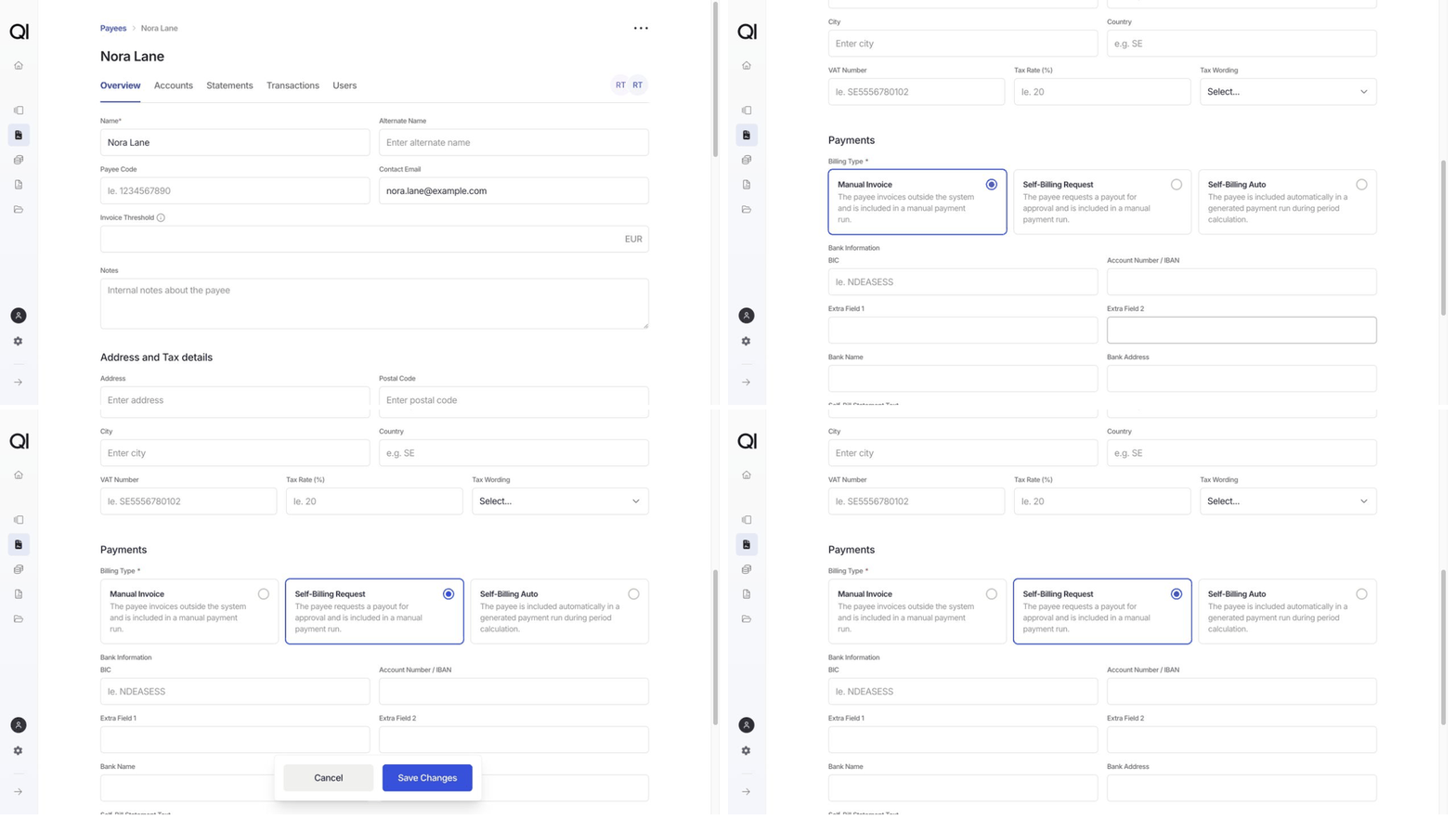
Changing billing types requires view and write access to Agreements. If you don’t see editable Billing Type options, ask your administrator. See User access and roles.
Choose a billing type
Manual Invoice. The payee sends you an invoice outside Qlero. You create the payment from that invoice and include it in a payment run. Qlero doesn’t generate a self-bill for it. Keep this option for payees who already send their own invoices. Self-Billing Auto. Qlero generates the invoice on the payee’s behalf. Period calculation creates the payment and adds it to a payment run, creating a run if needed. Choose this when you want payments prepared as part of each period, without waiting for the payee to request them. Self-Billing Request. Qlero generates the invoice on the payee’s behalf after they request a payout through the Artist Portal. You review the request under Reporting › Payments › Pending Requests, approve it, and include it in a payment run. Choose this when the payee should decide when to request their payout. Both self-billing options generate their self-bill PDFs when the payment run is prepared. Automatic self-billing still needs your review and execution of the run. The billing type controls invoicing; the payment-processing method controls how funds are transferred. Qlero blocks a billing-type change while the payee has an ongoing payment in any currency, including a pending payout request.Set manual invoice or self-billing on request
For self-billing on request, the payee needs Artist Portal access. Qlero asks them to complete any missing billing information before submitting a request. They can request a payout only when they have one payable currency above the invoice threshold and no ongoing payment.1
Open the payee
Open Agreements › Payees and click the payee. It opens on Overview.
2
Choose the billing type
Scroll to Payments. Under Billing Type, select Manual Invoice or Self-Billing Request.
3
Save the change
Click Save Changes. The selected billing type is now saved on the payee.
Set up automatic self-billing
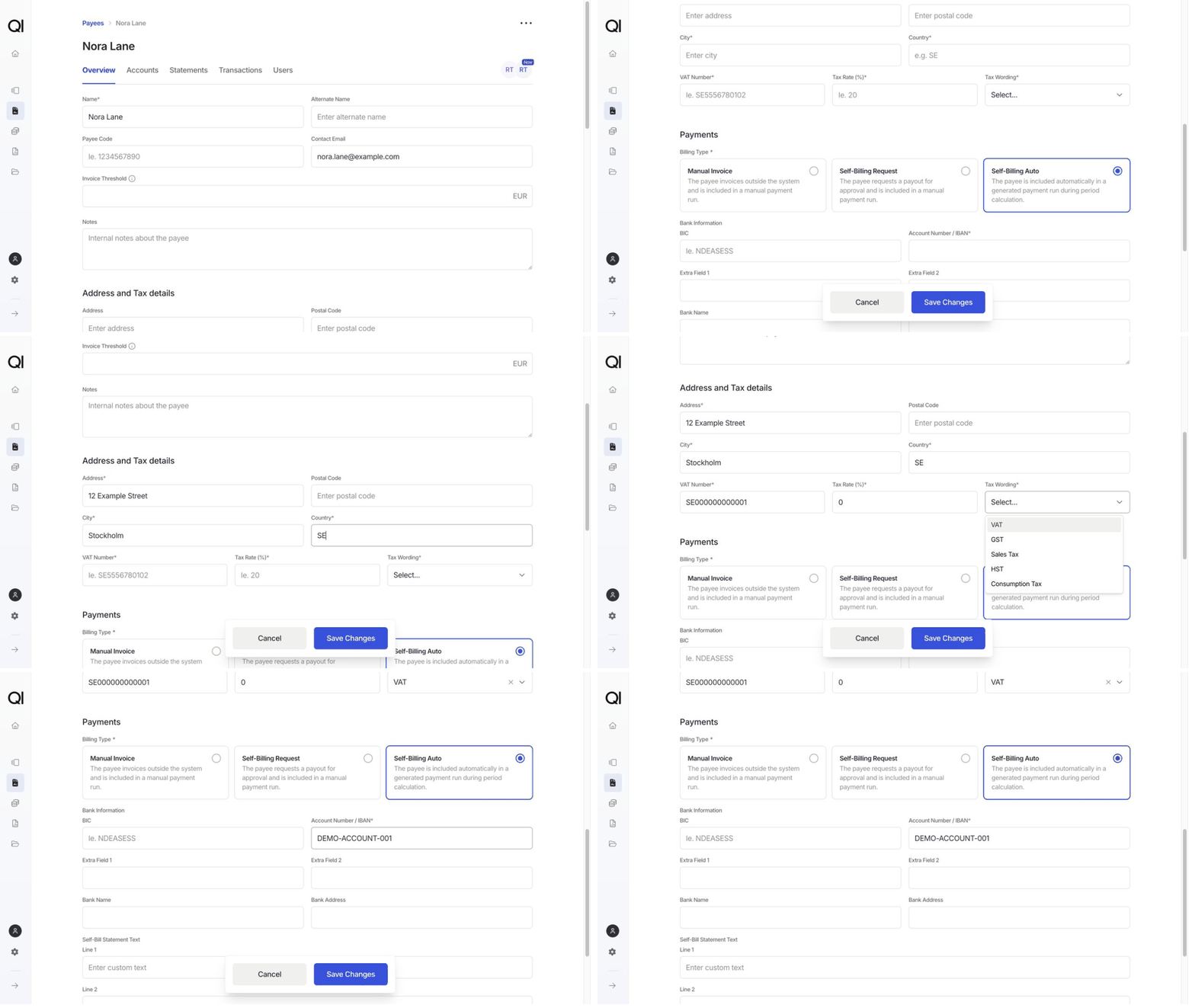
Have the payee’s address, tax, and bank details ready before choosing this option. See the Payee glossary for the field reference.1
Select automatic self-billing
Open the payee’s Overview and scroll to Payments. Under Billing Type, select Self-Billing Auto.
2
Complete the billing details
Under Address and Tax details, enter Address, City, Country (a two-letter code, such as
SE), VAT Number, and Tax Rate (%), then choose Tax Wording.Under Bank Information, enter Account Number / IBAN. Postal Code and BIC are optional.3
Save the payee
Click Save Changes. From the next period calculation, Qlero prepares this payee’s payments for your review.