

Creating, viewing and downloading reports require write access to Manage Reports. If you don’t see Reports or Create Report, ask your administrator. See User access and roles.
Reports are available on Pro and Enterprise plans.
Choose the dataset
Pick the dataset before adding filters or fields. Each one offers different columns:
Royalties and Reported Costs can include items with missing or invalid contracts, or items still awaiting reporting. Add a Period filter when checking one accounting cycle, and check the reporting status before treating the results as final.
Changing Dataset after configuring a report clears its filters and fields when you confirm Change Dataset.
Create the report
Start with a few fields that answer one question. For net income by store, Store Name, Currency Code and Net Amount are enough. Keeping the currency in the report separates totals in different currencies.1
Open a new report
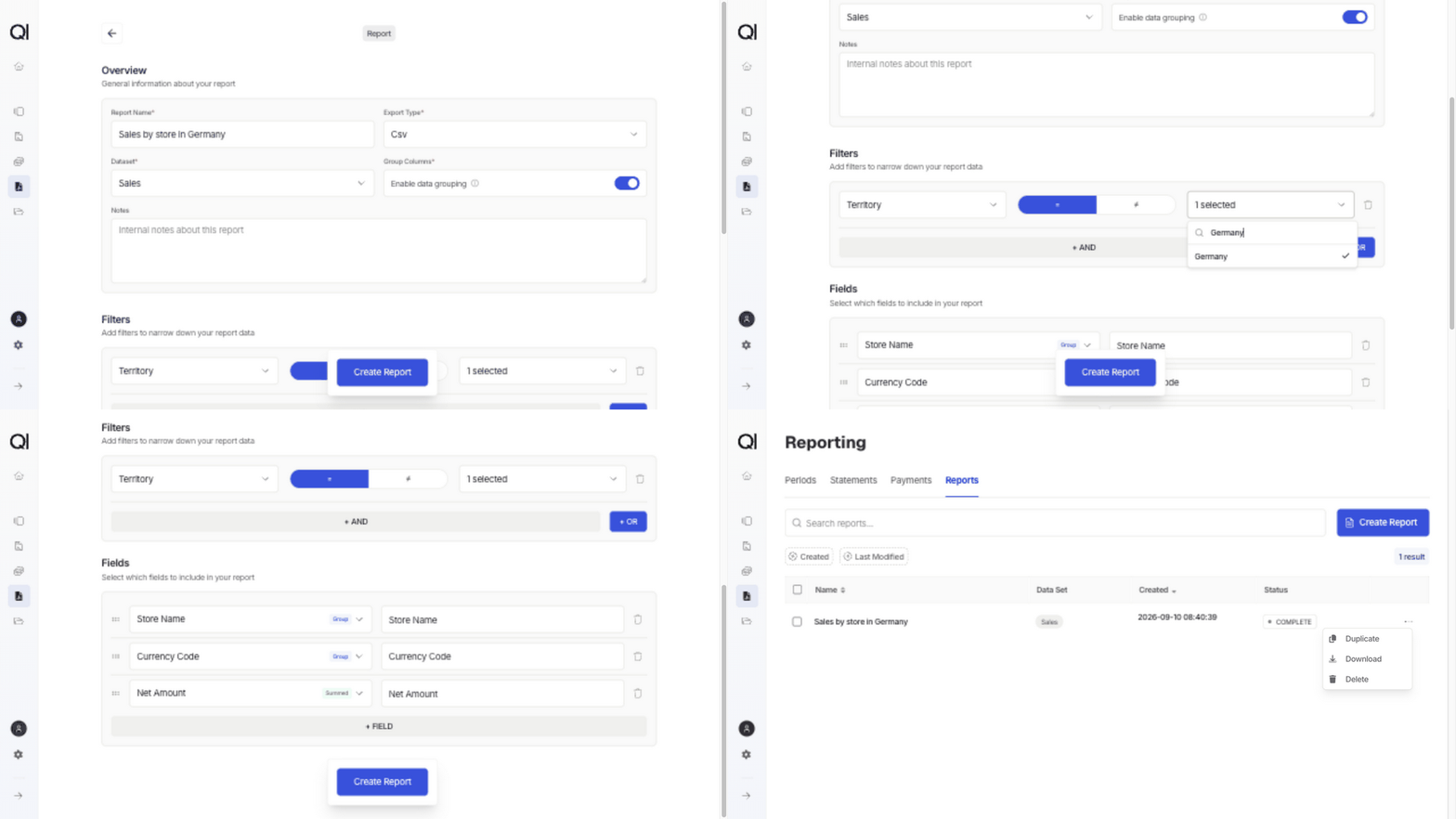
Go to Reporting › Reports and click Create Report.
2
Set up the report
Enter a Report Name, such as
Sales by store in Germany, and choose Sales as the Dataset. Notes is optional and internal.Choose Csv or Excel under Export Type. Leave Group Columns on for this example so Qlero totals the sales for each store and currency.3
Filter the rows
Under Filters, click + AND. Choose Territory, keep the = operator and select Germany.Add more conditions with + AND when every condition must match. + OR starts an alternative group. Leaving Filters empty includes all available rows in the dataset.
4
Choose the fields
Under Fields, click + FIELD and choose Store Name. Repeat for Currency Code and Net Amount, in that order.Qlero fills in a column heading beside each field. Keep it or enter your own heading. The report needs at least one field. Drag the handles to change the column order, or click the trash icon to remove a field.
5
Generate and download
Click Create Report. Qlero returns to the reports list, where the report shows In Progress while it generates.Once the status is Complete, open the report’s row menu and click Download. The example file contains a net income total for each store and currency with matching sales in Germany.
Grouped totals or individual rows
Group Columns is on by default. The field badges explain how Qlero combines rows:- Group fields define each group. In the example, each combination of store name and currency gets a separate row.
- Summed fields are added together within that group. Net Amount gives the total net income for those sales.
- Not Groupable fields, such as royalty rates, can’t be used with grouping. Remove them or turn Group Columns off.
Create an updated version
A completed report keeps the data from when it was generated. Downloading it again returns the same file. To change its setup or get fresh data, open the report’s row menu and click Duplicate. Qlero opens a new form with the original settings and(Copy) added to the name. Change the name, filters or fields as needed, then click Create Report. The original report stays in the list.
File formats and limits
CSV files use semicolons between fields. Excel files use.xlsx and stop at 1,000,000 data rows, with a warning at the end of the file. Use CSV or narrow the filters for larger exports.
If a report shows Failed, it has no download available. Duplicate it to try again. Contact Qlero if it keeps failing.