Reviewing payment requests requires view and write access to Payments & Transactions and view access to Repertoire & Agreements. If you don’t see Pending Requests or Review, or payees appear as IDs, ask your administrator. See User access and roles.
Review a request
Handling payment requests requires the Payments add-on. Contact Qlero to enable it for your record company.
1
Find the request
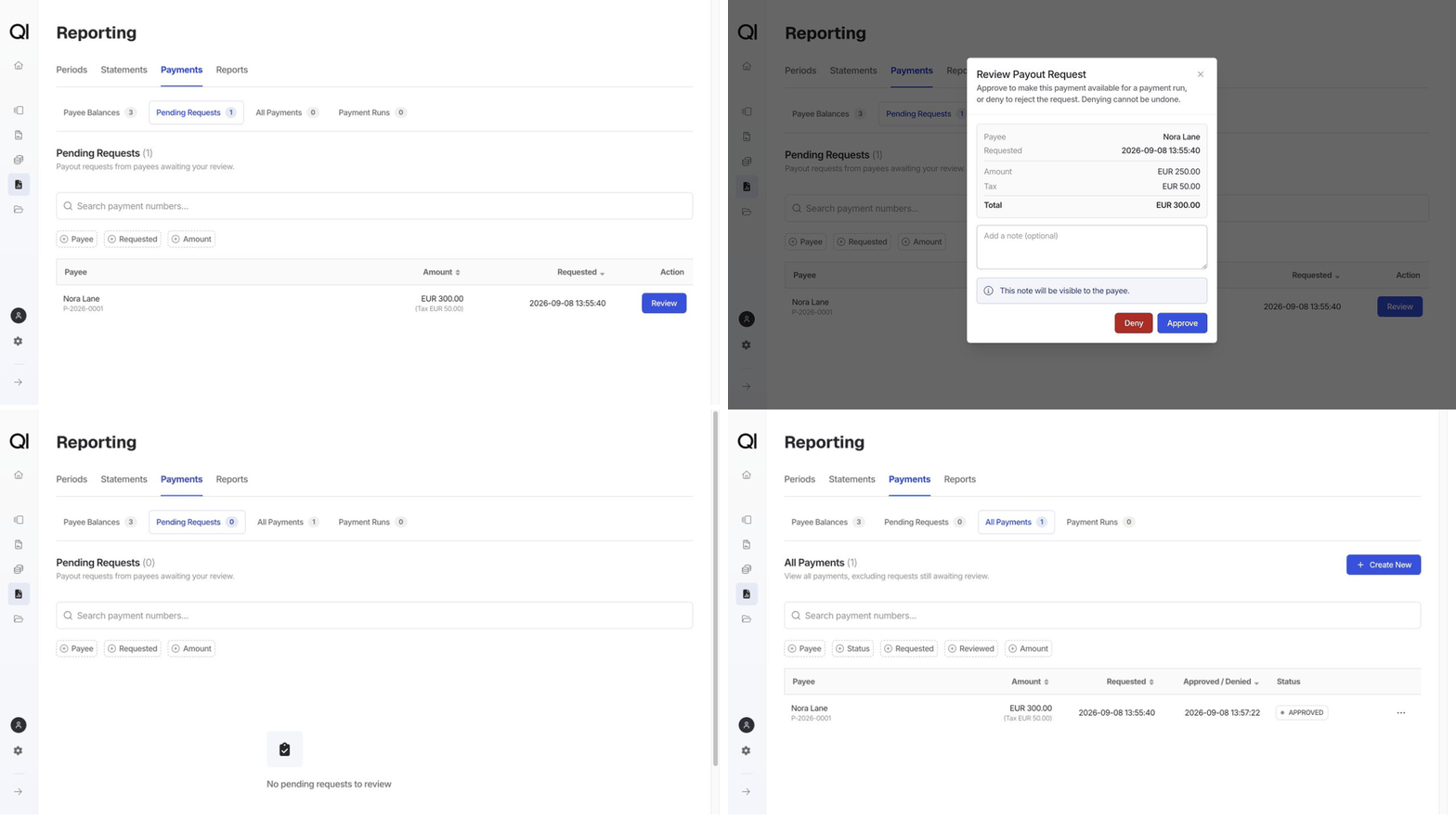
Open Reporting › Payments › Pending Requests. Use the Payee or Requested filter to find the request.
2
Review the amounts
Click Review beside the request to open Review Payout Request. Check the payee, currency, and amount breakdown. For example, Nora Lane’s request for EUR 250 with EUR 50 tax has a Total of EUR 300.The amounts are read-only in this window. Leave Add a note (optional) empty.
3
Approve or deny
Click Approve. The request leaves Pending Requests and appears in All Payments as Approved, ready to include in a payment run.Denial can’t be undone. Click Deny to reject the request immediately. It moves to All Payments as Denied and can’t be included in a run.