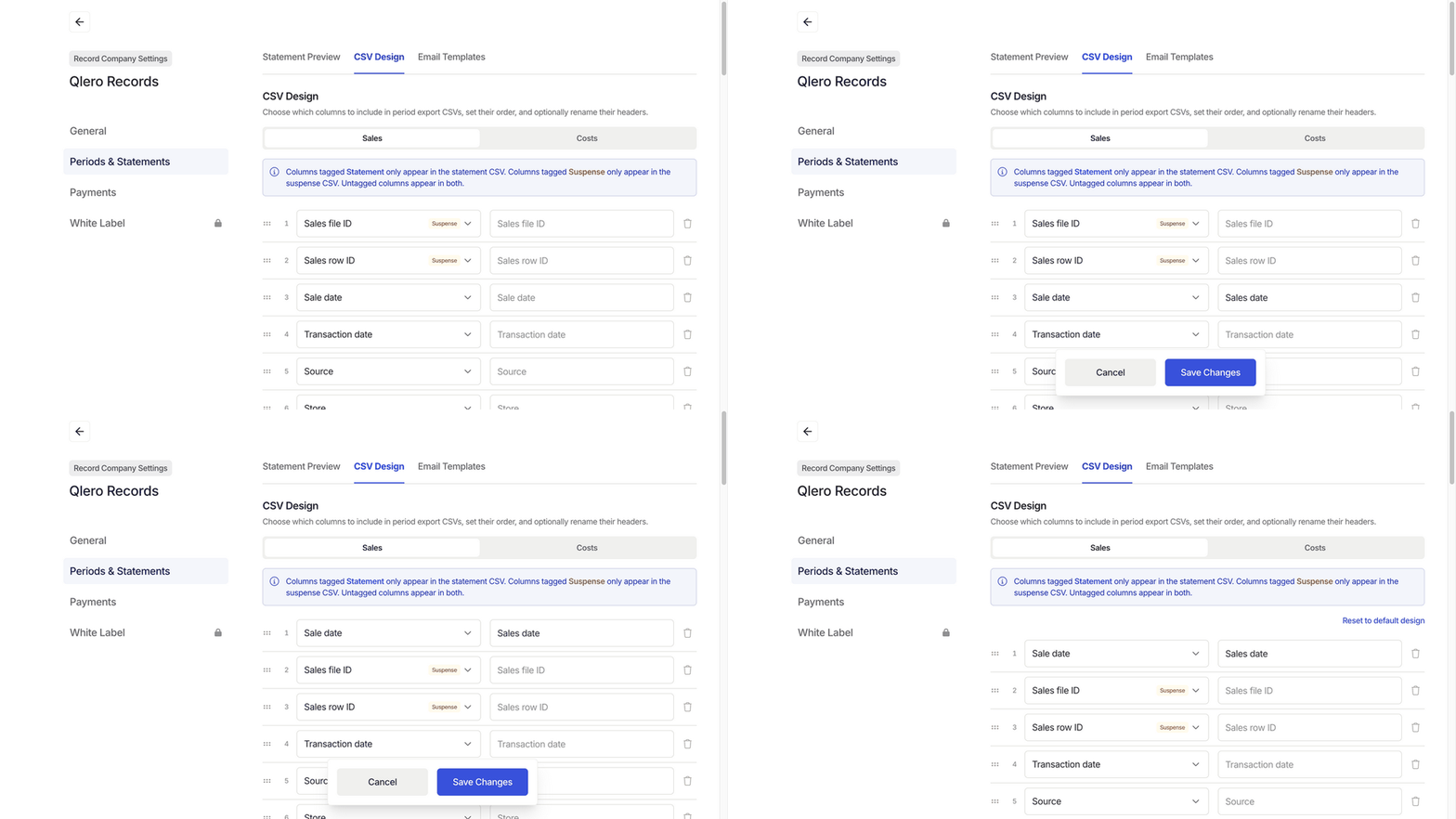
Configuring statement output requires write access to RC Settings. If you don’t see Record Company Settings, ask your administrator. See User access and roles.
Configure the CSV columns
Start with the default layout and remove columns your payees don’t use. Keep the identifiers and currency fields they need to reconcile the figures. Sales and Costs have separate layouts. Each applies to both statement and suspense CSVs for that file type: columns tagged Statement appear only in statement CSVs, those tagged Suspense appear only in suspense CSVs, and untagged columns appear in both.1
Open the design
Open Settings › Record Company Settings, click Periods & Statements, then CSV Design. Click Sales or Costs.
2
Choose and order the columns
Each numbered row is one output column. Click its dropdown to choose a field, or click + ADD COLUMN to add another. Use the trash icon to remove a column and the handle on its left to drag it into a new position.Choose a field for every row and keep at least one column. Each field can appear only once.
3
Set the headers
Enter a custom header in the text box beside a field. For example, rename Sale date to
Sales date. Leave the box empty to use the default header. Renaming changes the heading, not the values in the column.4
Save the layout
Switching to the other file type discards unsaved changes, so click Save Changes first. Reset to default design appears above the columns.