

Configuring payment output requires write access to Record Company Settings. Downloading payment files requires view access to Payments & Transactions. If you don’t see Record Company Settings or Payment Runs, ask your administrator. See User access and roles.
Configure the columns
Configuring payment output requires the Payments add-on. Contact Qlero to enable it for your record company.
Qlero doesn’t retain changes to the column order. Check the downloaded file’s order before importing it into another system.
1
Open the design
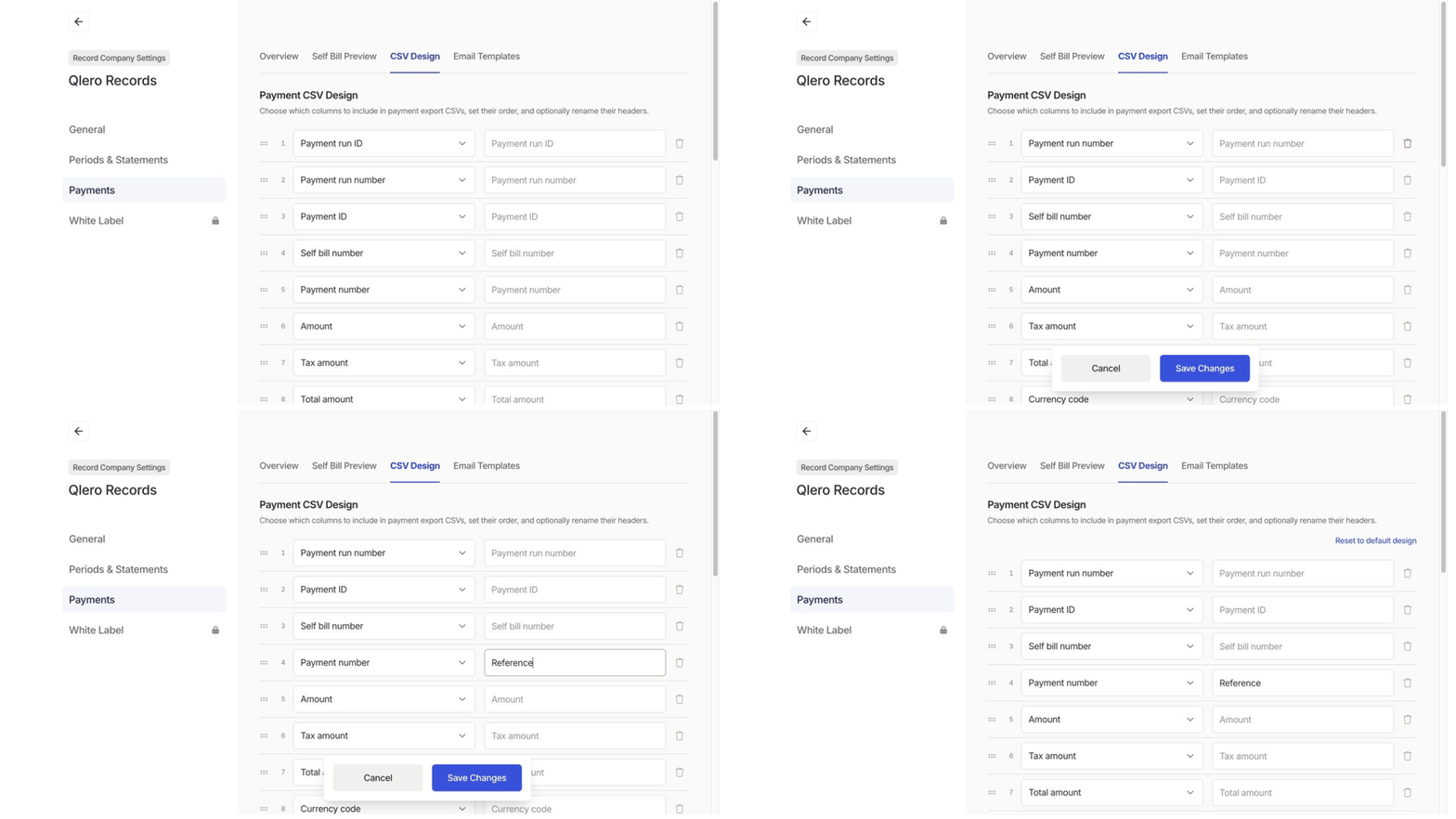
Open Settings › Record Company Settings, click Payments, then CSV Design.
2
Choose the columns
Each numbered row is one output column. Click its dropdown to choose a field, or click + ADD COLUMN to add another. Use the trash icon to remove a column.Choose a field for every row and keep at least one column. Each field can appear only once.
3
Set the headers
Enter a custom header in the text box beside a field. For example, rename Payment number to
Reference. Leave the box empty to use the default header.4
Save the layout
Click Save Changes. Every later payment CSV or Excel download uses the saved layout, including downloads from runs you’ve already created.
Download the output
Open Reporting › Payments › Payment Runs and open a run. In its three-dot menu, click Payments (CSV) or Payments (Excel).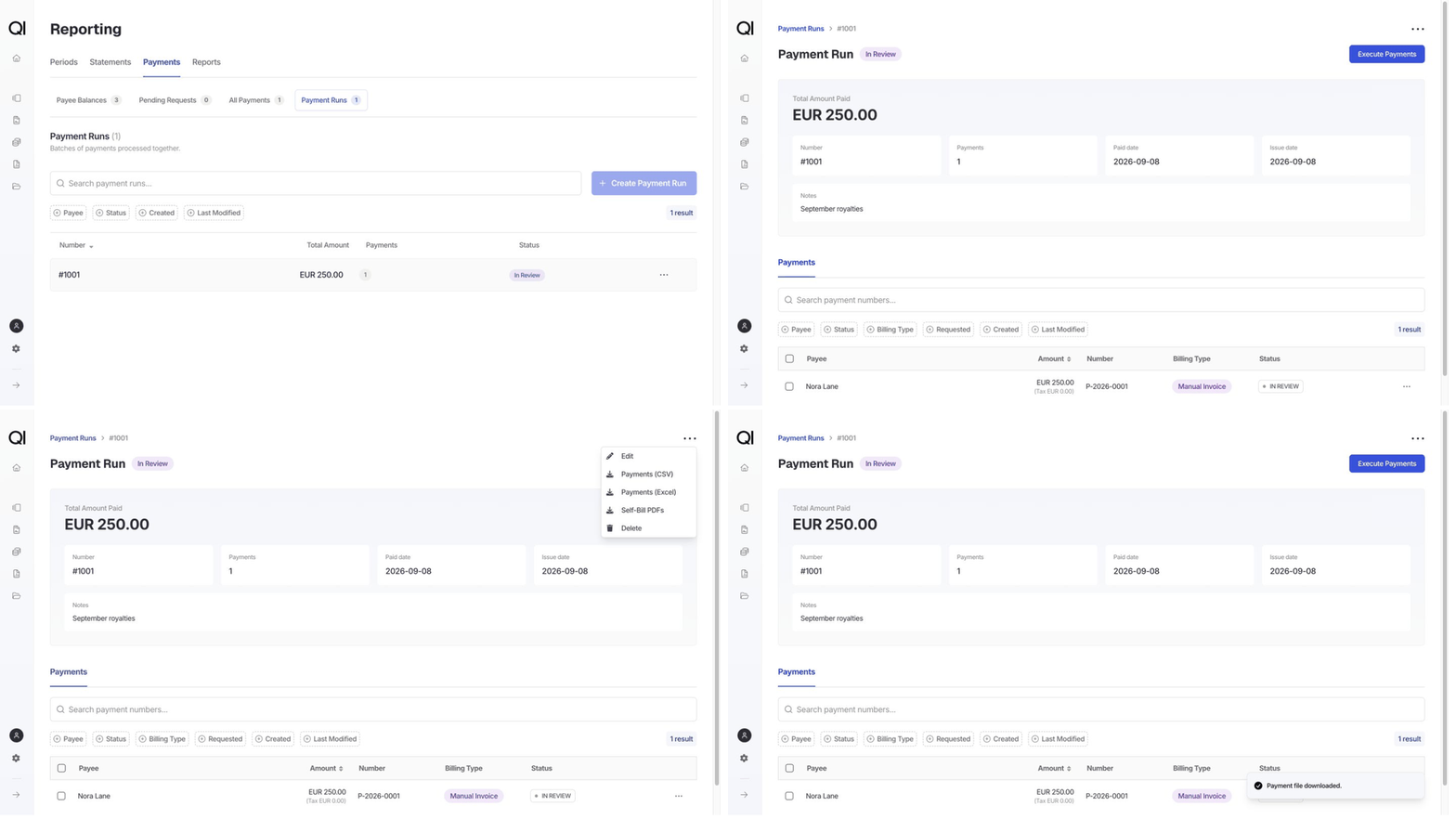
.xlsx format. The run download includes payments using manual payment processing and excludes Cancelled and Below Threshold payments.
Download a sample and compare it with your finance team’s required headers and column order before they rely on it.