Creating and executing payment runs requires view and write access to Payments & Transactions. If you don’t see Payment Runs or Create Payment Run, ask your administrator. See User access and roles.
Before you start
Payment runs require the Payments add-on. Without it, process payments you make outside Qlero as described in Process payments without payment runs.
Prepare the payments
Open Reporting › Payments. How payments reach a run depends on the payee’s billing type:- Manual Invoice. After receiving the payee’s invoice, create the payment using the steps below.
- Self-Billing Auto. Period calculation creates payments and adds them to the current payment run, creating a run if needed. Open that run under Payment Runs.
- Self-Billing Request. Open Pending Requests, review the payee’s request, and click Approve to make it available for a run.
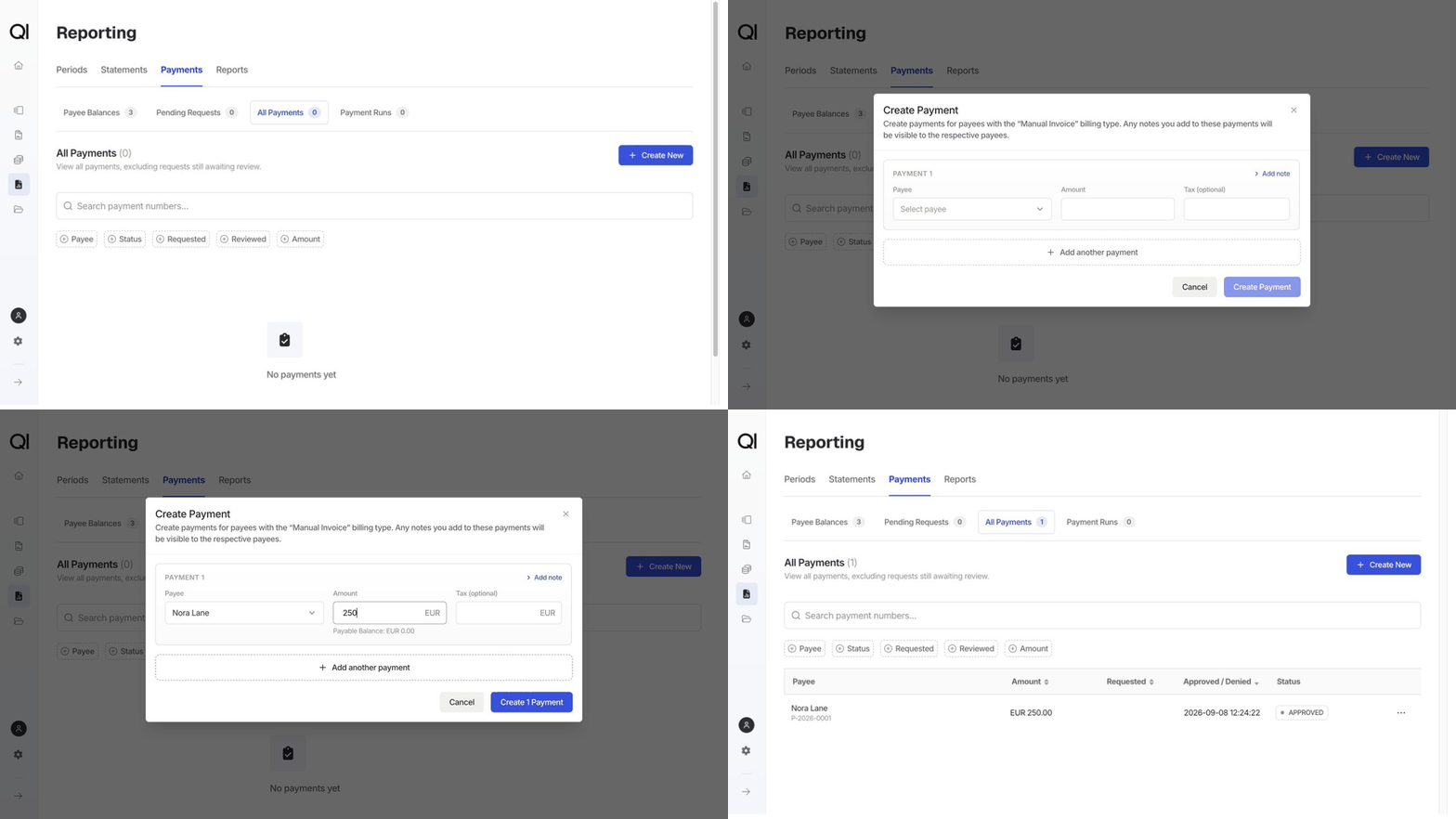
Create manual-invoice payments
Qlero permits only one ongoing payment per payee and currency, so check All Payments before creating another for the same invoice.1
Start a payment
Click All Payments, then Create New to open Create Payment.
2
Enter the invoice amounts
Select the Payee. Enter the invoice amount before tax in Amount, and enter Tax (optional) separately. For a payee with payable balances in multiple currencies, choose the invoice currency from the selector.Click Add another payment for another invoice. Any note added with Add note is visible to that payee.
3
Create the payments
Click Create 1 Payment (the count matches the payments you added). The payments appear in All Payments as Approved, ready to include in a run.
Create or open a payment run
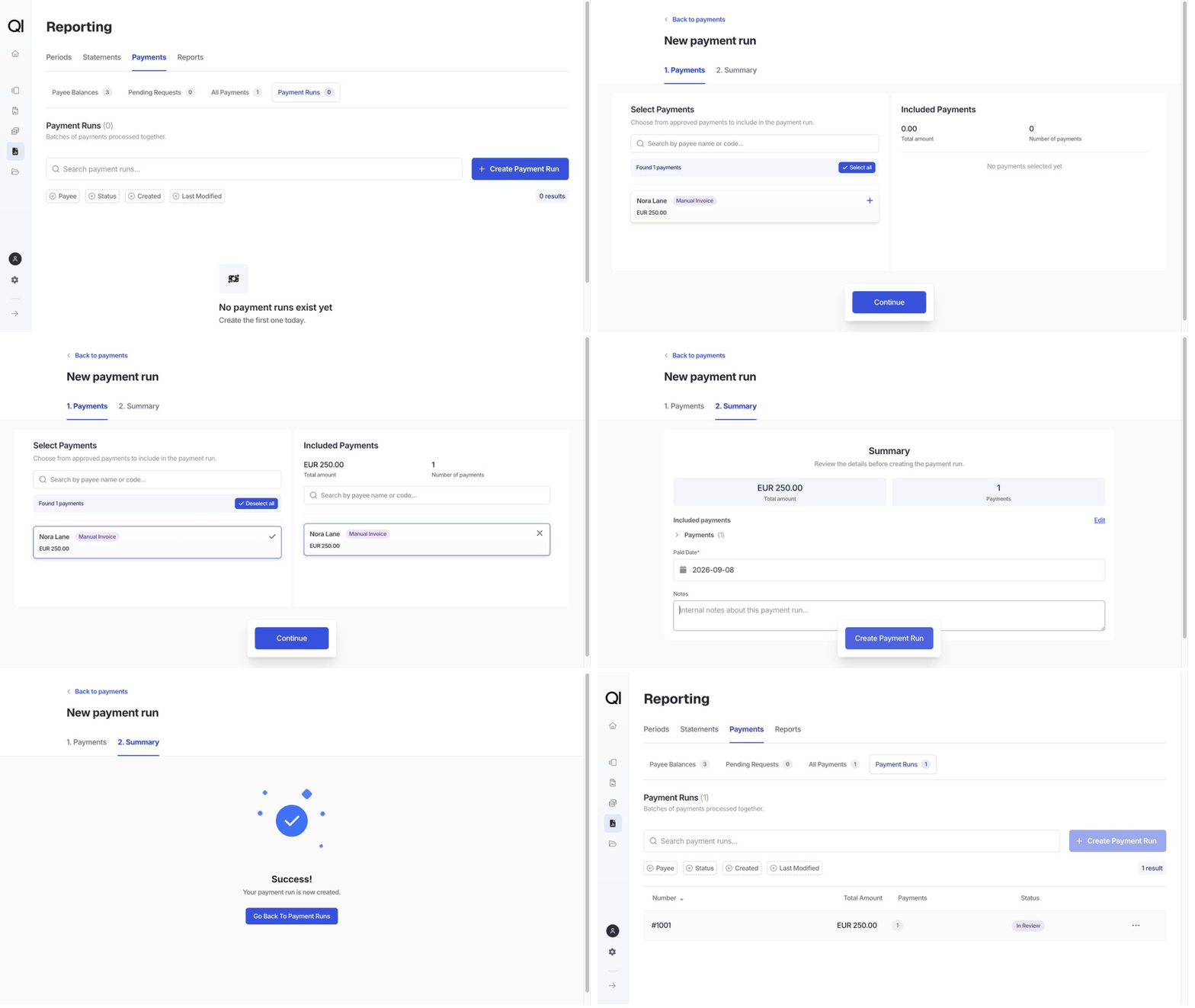
A run must reach Closed before you can create another. If period calculation has already created one, open it under Payment Runs and continue to Review the run.Create a new run
1
Start a run
Click Payment Runs, then Create Payment Run.
2
Choose the payments
Select the approved payments to include, then click Continue. Select all selects the eligible payments matching the current search.
3
Complete the summary
Enter Paid Date, the date recorded on the payments and used in payment emails. It doesn’t schedule execution; payments are recorded as paid when you execute the run. Notes is optional.Click Create Payment Run, then Go back to payment runs. The run moves through Preparing to In Review, ready for you to open and check.