

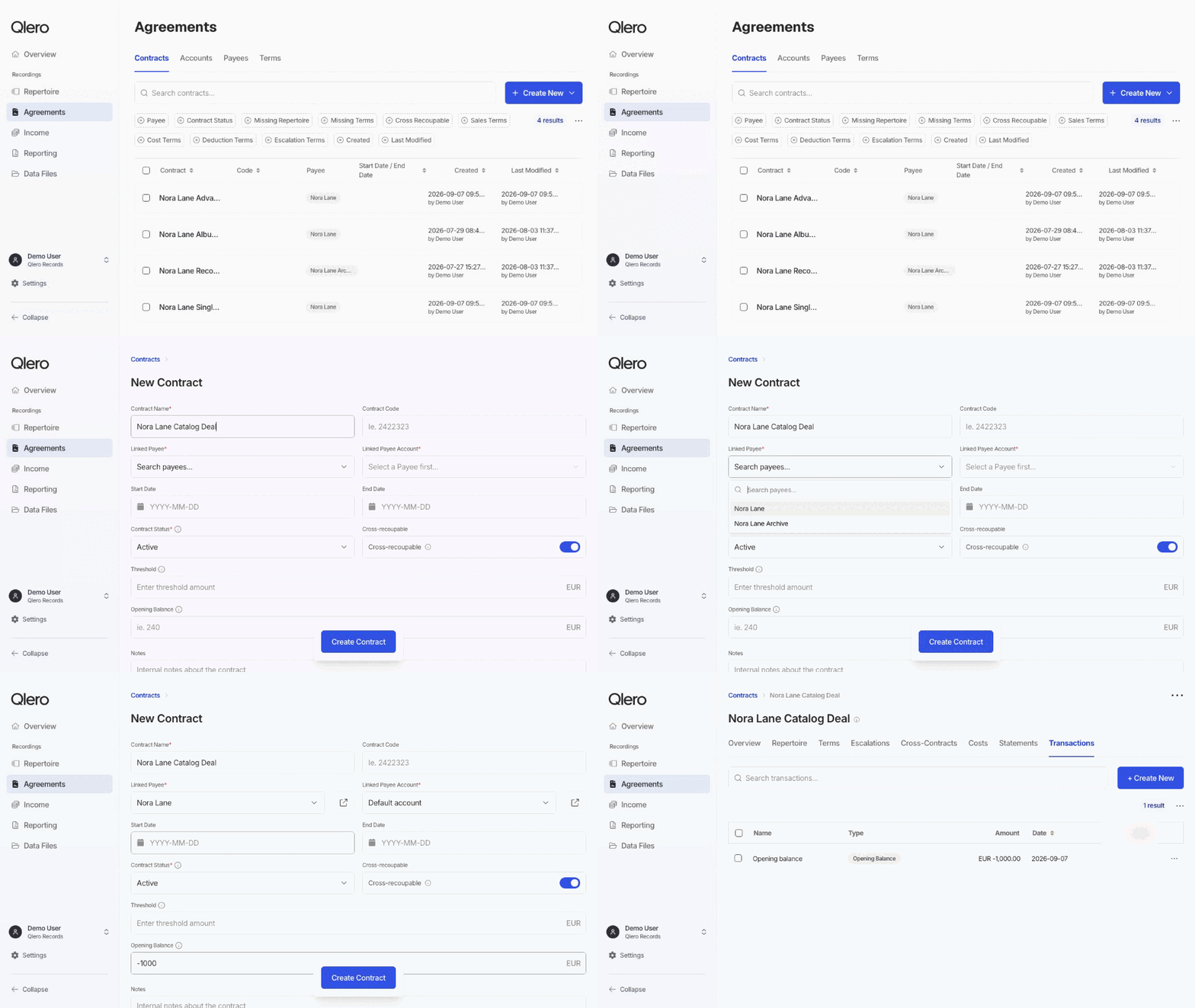
- While creating a contract. Enter it in the Opening Balance field on the contract form. Qlero dates it today.
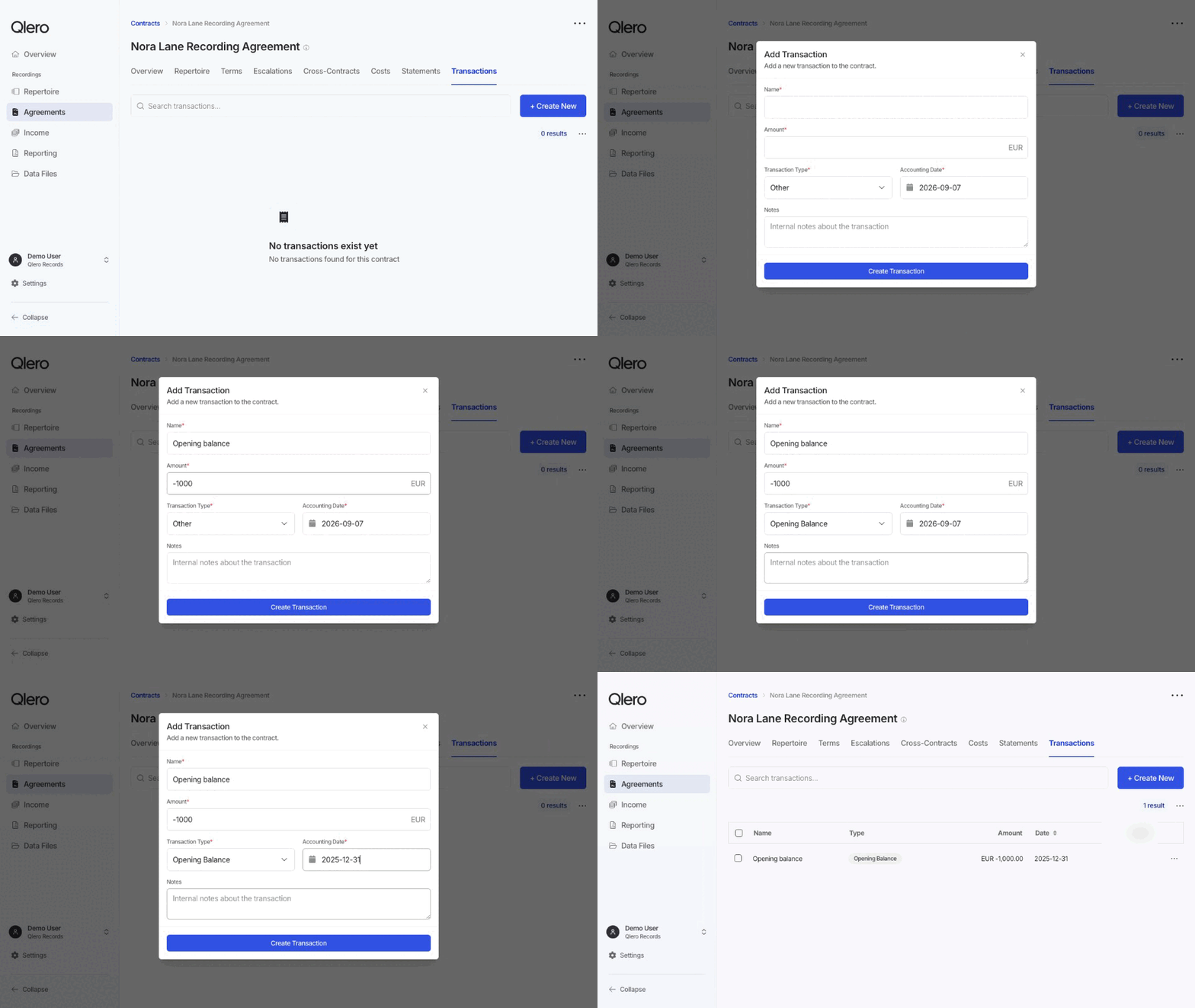
- On an existing contract, account, or payee. Add an Opening Balance transaction from its Transactions tab. Use this route when the balance needs an earlier accounting date.
Add an opening balance while creating a contract
Creating a contract requires write access to Repertoire & Agreements. If you don’t see the Create New button, ask your administrator. See User access and roles.
1
Go to Agreements › Contracts
Click Create New. If a menu opens, choose Single. The New Contract page opens.
2
Fill in the contract
Name the contract and link it to a payee and account, as described in First-time setup. Everything else can stay on its defaults.
3
Enter the opening balance
In Opening Balance, enter the amount with the sign from the table below. The currency is the payee’s reporting currency.
4
Click Create Contract
The contract opens with the opening balance already on its Transactions tab.
Add an opening balance from the Transactions tab
Use this route for an earlier accounting date, or for an existing contract, account, or payee that has no transactions yet.Adding transactions requires view access to Repertoire & Agreements and view and write access to Payments & Transactions. If you don’t see the Create New button on the Transactions tab, ask your administrator. See User access and roles.
1
Open the record
Go to Agreements › Contracts, Accounts, or Payees and open the record.
2
Open Transactions
Click the Transactions tab, then Create New.
3
Enter the transaction
Enter a Name and the Amount, with the sign from the table below. Choose Opening Balance as the Transaction Type and set Accounting Date to the date the balance was correct. Notes are optional and internal.Opening Balance is only offered while the record has no transactions. If it’s missing, clear any search filter and check the list.
4
Click Create Transaction
The opening balance appears in the list with its amount, currency, and accounting date.
Choose the opening amount
Qlero records the amount in the payee’s reporting currency.
The amount can’t be zero. Enter the balance as it stood on the accounting date you choose.
Change an opening balance
While the opening balance is the only transaction on the record and isn’t locked, you can edit it: open its row menu on the Transactions tab, choose Edit, change the amount, and click Update Transaction. Once later transactions exist, or the opening balance is locked, add an Other transaction on the same record for the difference. Changing a starting balance of EUR -1,000 to EUR -800 takes an Other entry of EUR 200. The original stays on the record. Advances and adjustments walks through the adjustment.Next steps
- Review how balances move between contracts, accounts, and payees.
- Continue setting up a new deal by creating and linking contract terms.