

Creating, changing, or removing cross contracts requires view and write access to Agreements. If the Add Cross-Contract button is missing or the fields are disabled, ask your administrator. See User access and roles.
Choose what happens to the amount
Operation determines which contract changes. Suppose Nora Lane Album Deal has EUR 1,000 in royalties and Nora Lane Singles Deal has no balance. With Income Always and a Rate % of20, the rule uses EUR 200:
This example has no opening balance, costs, reserves, or other transactions and uses one rule. The amounts are before the normal transfer from each contract to its account.
Use Transfer when you’re moving a share of royalties between deals. Add To and Subtract From leave the source unchanged, so they increase or reduce the combined amount owed across the two contracts.
Each movement appears by name in the Transactions list on the statements and PDFs of the contracts it changes. A Transfer shows on both, for example Transfer to contract ‘Nora Lane Singles Deal’ on the source and Transfer from contract ‘Nora Lane Album Deal’ on the target. Add To and Subtract From show only on the target, as Added by contract ‘Nora Lane Album Deal’ or Subtracted by contract ‘Nora Lane Album Deal’. See where each transaction appears.
Choose which amount to use
Mode determines the amount that Rate % applies to:- Income Always uses the source’s royalty earnings for the period, before costs and opening balances. It doesn’t include incoming cross-contract transfers.
- Balance Always uses the source’s balance, including its opening balance, royalties, costs, reserves, other transactions, and incoming transfers. It can use a negative balance.
- Balance If Positive uses that balance only when it’s above zero.
Create a cross contract
Creating or changing cross contracts is available on Pro and Enterprise plans. Existing rules can still be viewed and removed on Lite.
1
Open the source contract
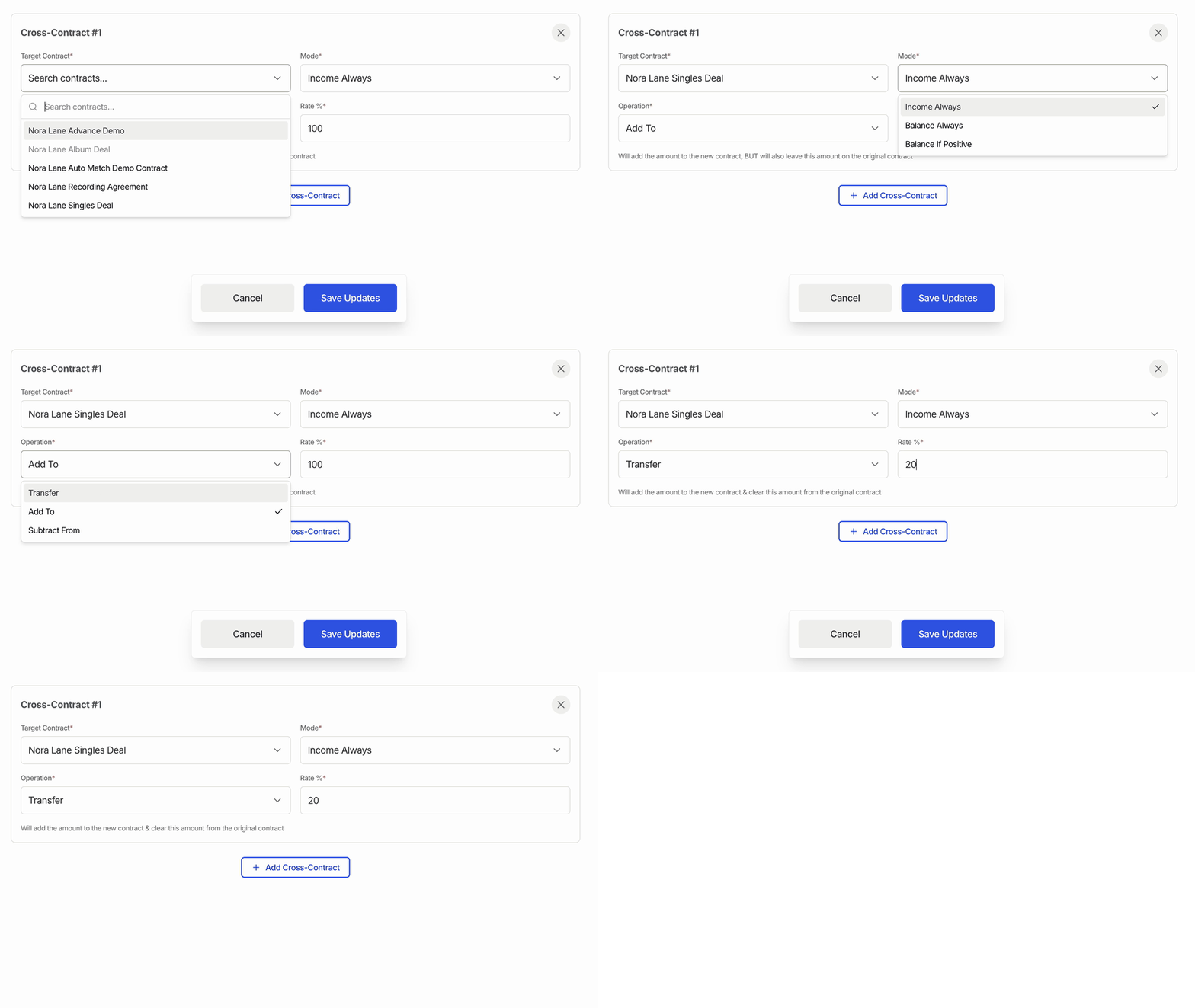
Go to Agreements › Contracts, open Nora Lane Album Deal, and click Cross-Contracts.
2
Add the target
Click Add Cross-Contract and choose Nora Lane Singles Deal in Target Contract.
3
Set the rule
Choose Income Always for Mode, Transfer for Operation, and enter
20 in Rate %.4
Save the rule
Click Save Updates. The saved rule remains on the Cross-Contracts tab and applies when you next calculate an accounting period.
Change or remove a rule
Change a rule. Open the source contract’s Cross-Contracts tab, edit its fields, and click Save Updates. Remove a rule. Click the × on its card, then click Save Updates. The rule no longer applies to future calculations; removing it doesn’t undo transactions already calculated.Next steps
- How to use contracts, accounts and payees explains how contract balances flow through accounts to payees.
- Contract glossary explains the other settings on a contract.