

Adding advances and adjustments requires view access to Repertoire & Agreements and view and write access to Payments & Transactions. If you don’t see the Create New button on the Transactions tab, ask your administrator. See User access and roles.
Add an advance
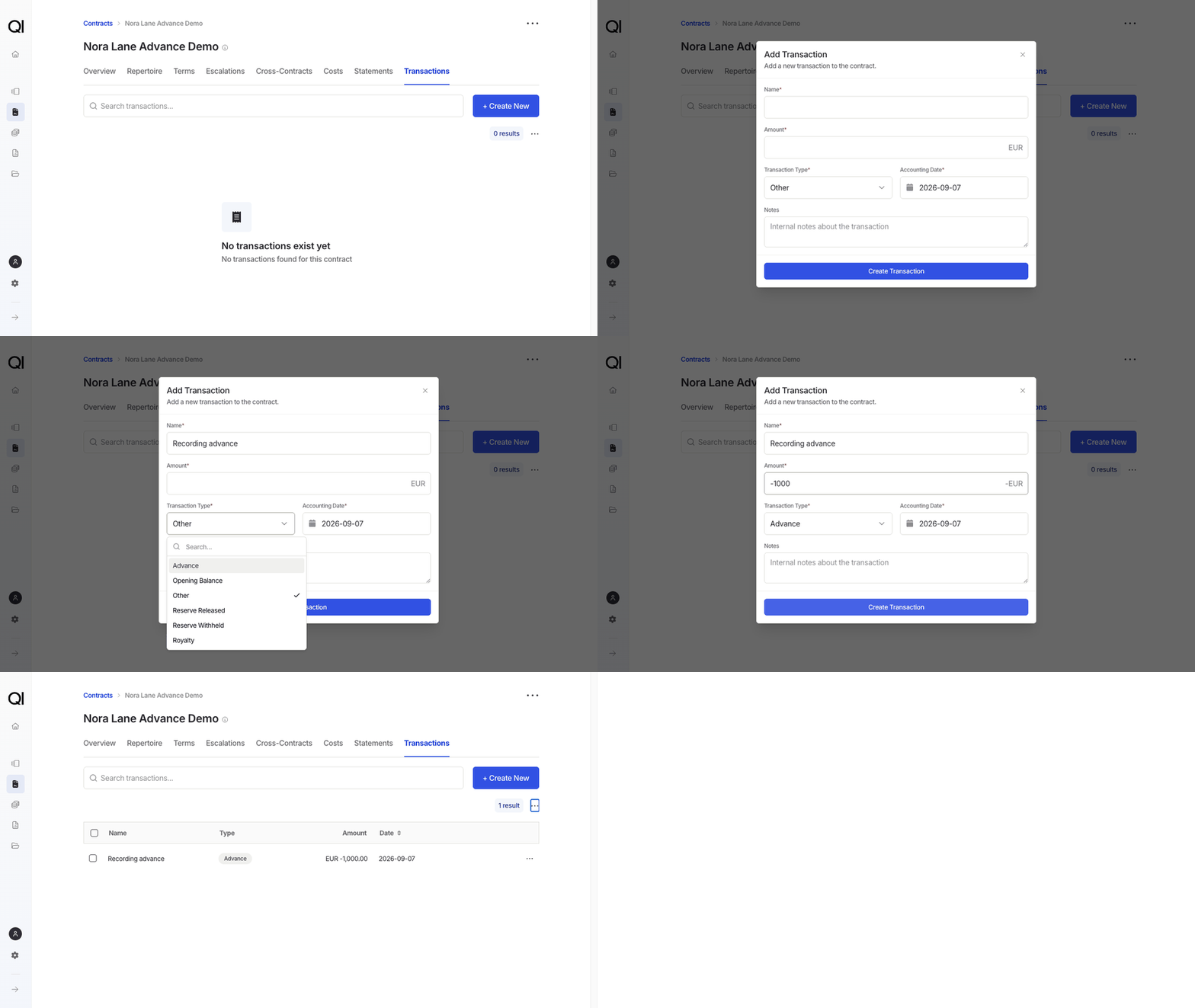
An advance is entered as a negative amount, because it’s money to be recouped from future earnings. For a EUR 1,000 advance, enter-1000.
1
Open the record's Transactions tab
Go to Agreements › Contracts, Accounts, or Payees, open the record, click Transactions, then Create New. The form is the one described in Creating transactions.
2
Describe and date the advance
Enter a Name such as Recording advance, choose Advance as the Transaction Type, and enter the negative Amount. Set Accounting Date to the date the advance applies, today or earlier. Notes are optional, and a reference to the agreement is worth adding.
3
Click Create Transaction
The advance appears in the list as a negative amount in the payee’s reporting currency.
Correct a balance with an Other transaction
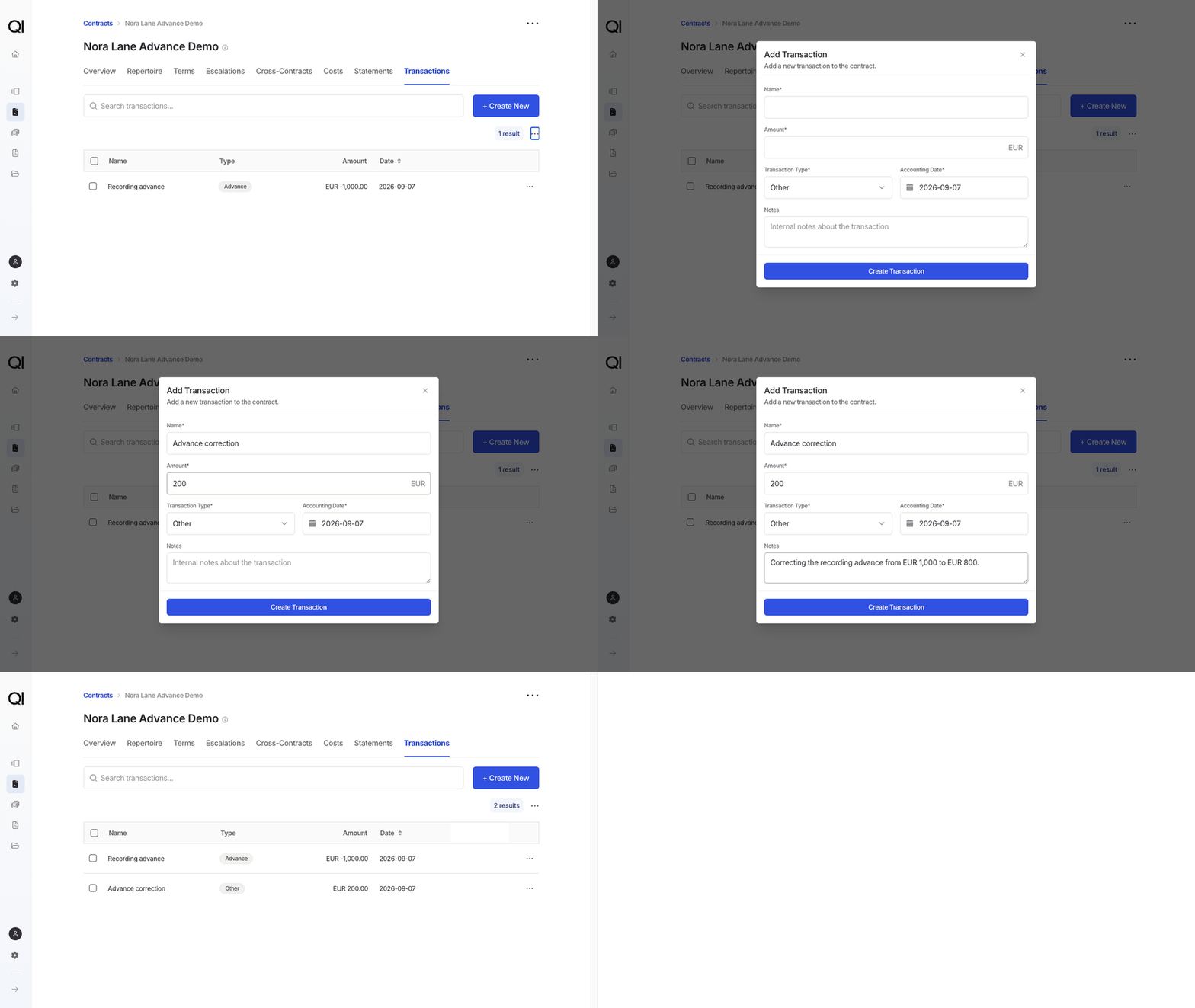
If the original entry is still editable, the simplest fix is to edit it. Add a separate Other transaction instead when the original is locked (a closed period has used it), or when you want the correction visible as its own line. Enter only the difference: a positive amount raises the balance, a negative amount lowers it.1
Open the same record
Open the Transactions tab of the record that holds the original advance, then click Create New.
2
Enter the correction
Leave Transaction Type on Other. Enter a Name such as Advance correction, the difference as the Amount, and the Accounting Date of the correction. In Notes, say which entry this corrects and why.
3
Click Create Transaction
The correction sits next to the original. An Advance of EUR -1,000 plus an Other entry of EUR 200 leaves EUR -800 to recoup, before any earnings, costs, or transfers.
What happens when statements are calculated
Advances and Other adjustments go into the statement balance at their full amount; royalty rates aren’t applied to them. The next period you calculate picks up every transaction not yet used in a period, whatever its Accounting Date, and recalculating an open period picks up entries added since. A correction added after a period closes goes into the next one; it doesn’t rewrite the closed statement.Next steps
- Edit or delete an entry in Creating transactions.
- To bring in a starting position from a previous system, use an opening balance.