Creating transactions requires view access to Repertoire & Agreements and view and write access to Payments & Transactions. If you don’t see the Transactions tab or the Create New button, ask your administrator. See User access and roles.
Choose a transaction type
Amounts can’t be zero, and each type expects a sign:- Other (positive or negative). Any correction or adjustment that isn’t one of the types below. This is the default.
- Royalty (positive or negative). A royalty amount that should count toward the balance without going through the contract’s terms.
- Advance (negative). Money paid ahead of royalties, to be recouped from future earnings.
- Reserve Withheld (negative) and Reserve Released (positive). Hold back part of a balance by hand, then release it later.
- Payment (negative). A payment made outside Qlero. Only offered on payees, and only when Qlero payments are turned off.
- Opening Balance. The starting position from a previous system. Only offered while the record has no transactions.
Create a transaction
1
Open the record's Transactions tab
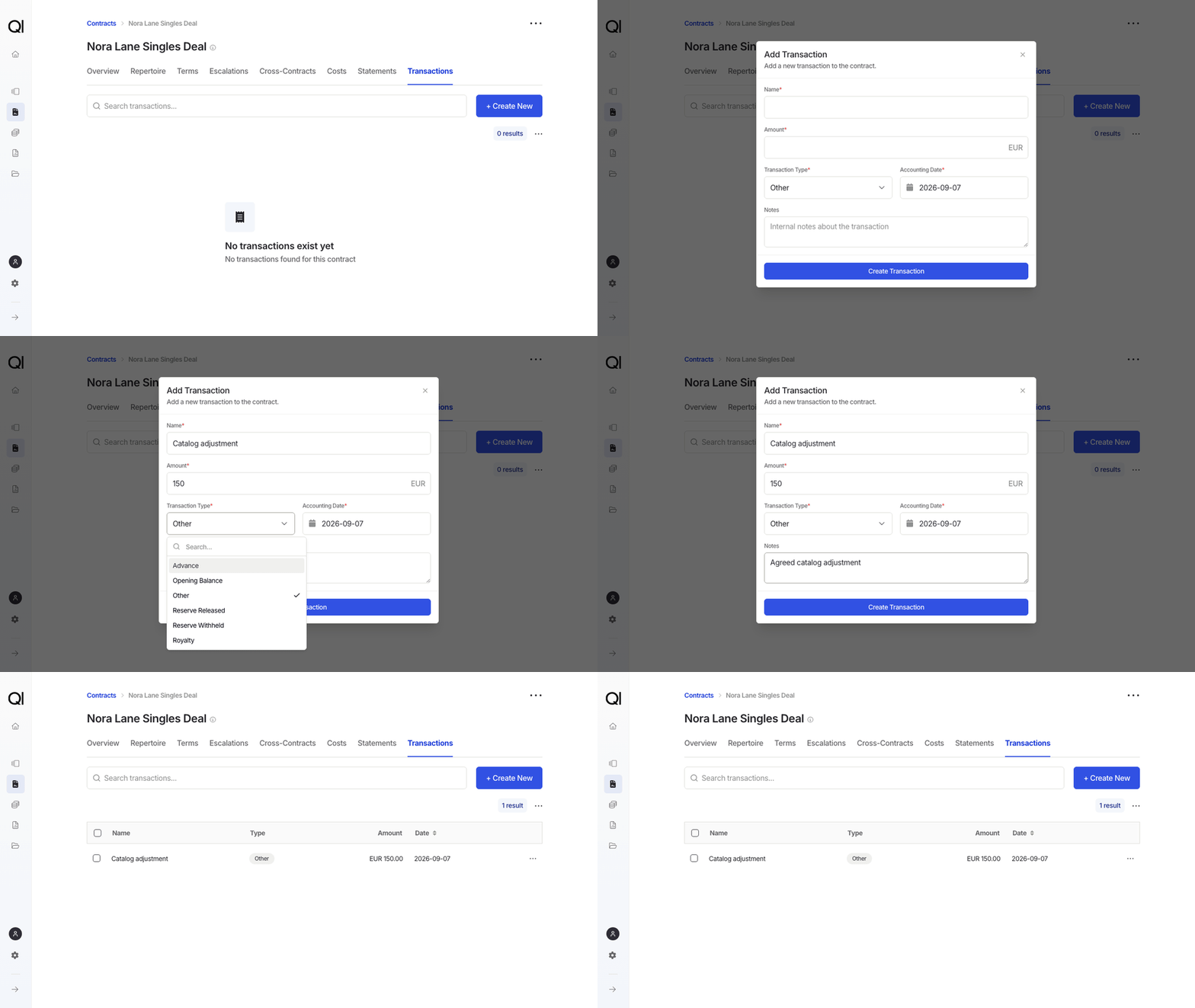
Go to Agreements › Contracts, Accounts, or Payees, open the record, click Transactions, then Create New.
2
Enter the amount and type
Name, Amount, and Transaction Type are required, and the type defaults to Other. For the example: Catalog adjustment,
150, and Other on Nora Lane Singles Deal. The amount is in the payee’s reporting currency.3
Set the date and add a note
Accounting Date defaults to today and can’t be in the future. It’s the date shown on the entry; whatever the date, the next period you calculate picks the transaction up. Notes are optional and internal; use them to say why the entry exists.
4
Click Create Transaction
The form closes and the new row appears in the list. If you don’t see it, clear the search box.
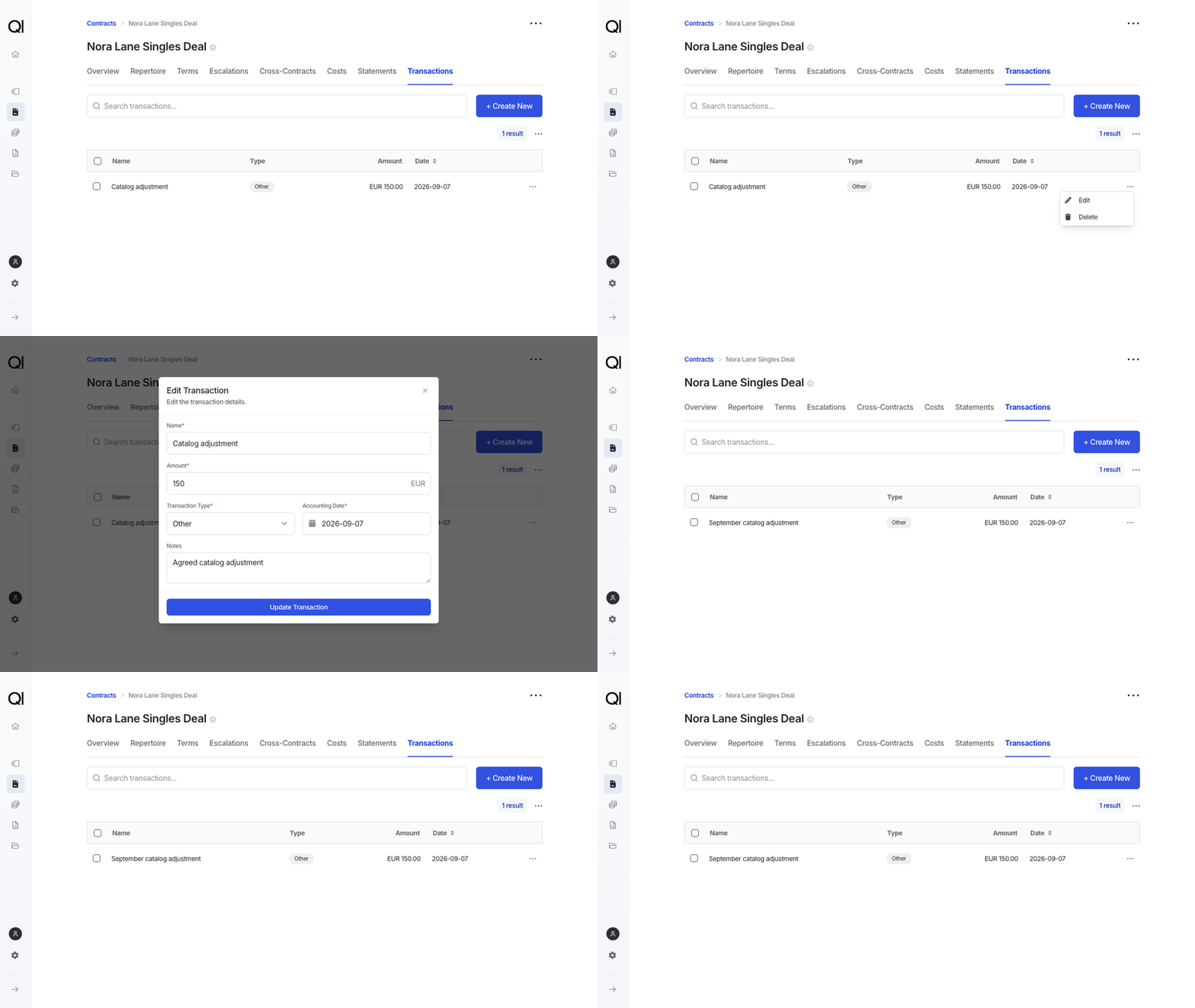
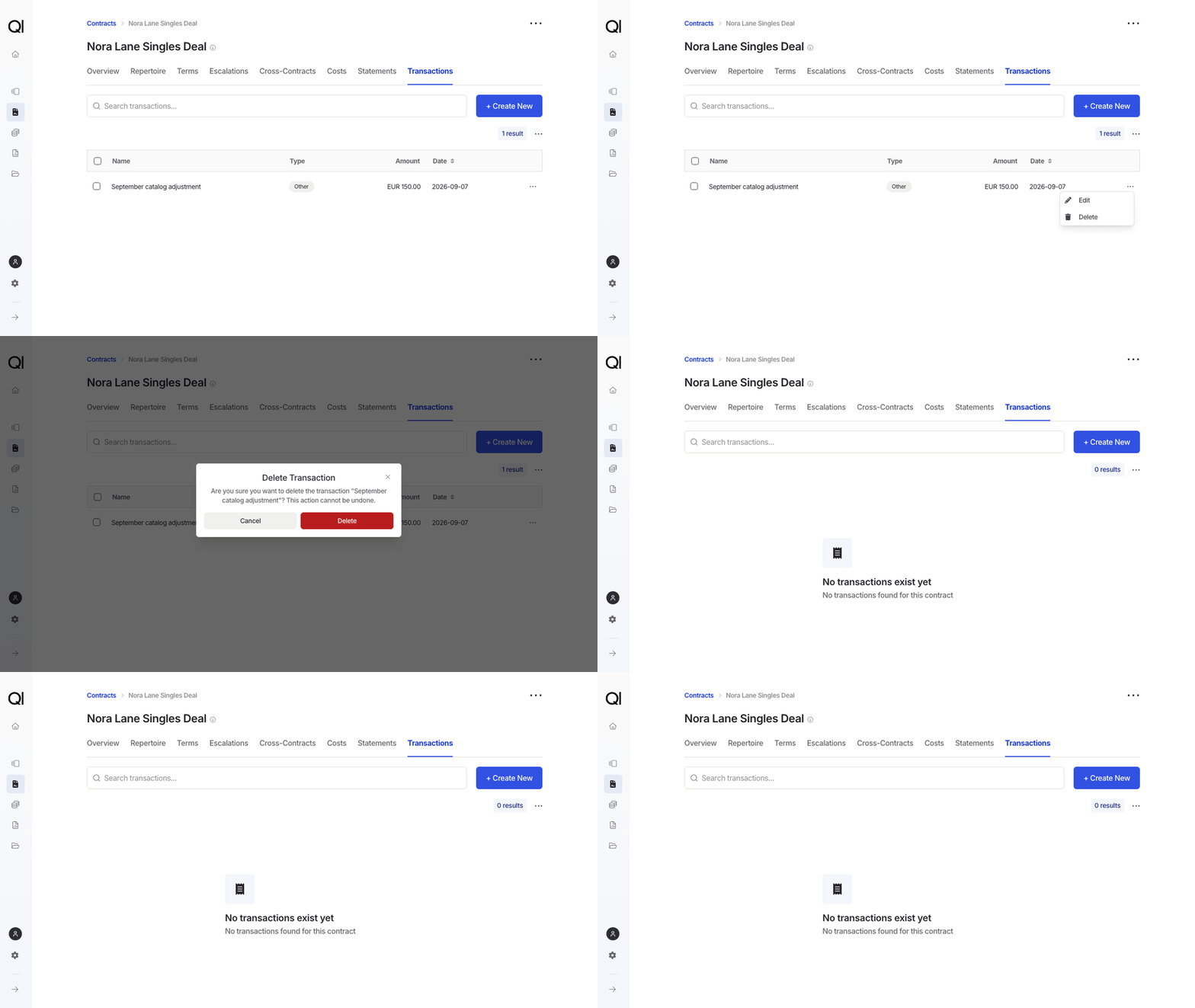
Edit or delete a transaction
Open the record’s Transactions tab and find the entry. A lock icon in place of the row menu means the entry can’t be changed: Qlero created it, or a closed period has used it. Opening balances also lock once later transactions exist. Edit an entry. Open its row menu and choose Edit. Change the name, amount, type, accounting date, or notes, then click Update Transaction.