Viewing Payments requires Artist Portal access to the payee, and your record company must have Payments enabled. If the Payments tab doesn’t appear, ask your record company’s administrator. See User access and roles.
Payment history
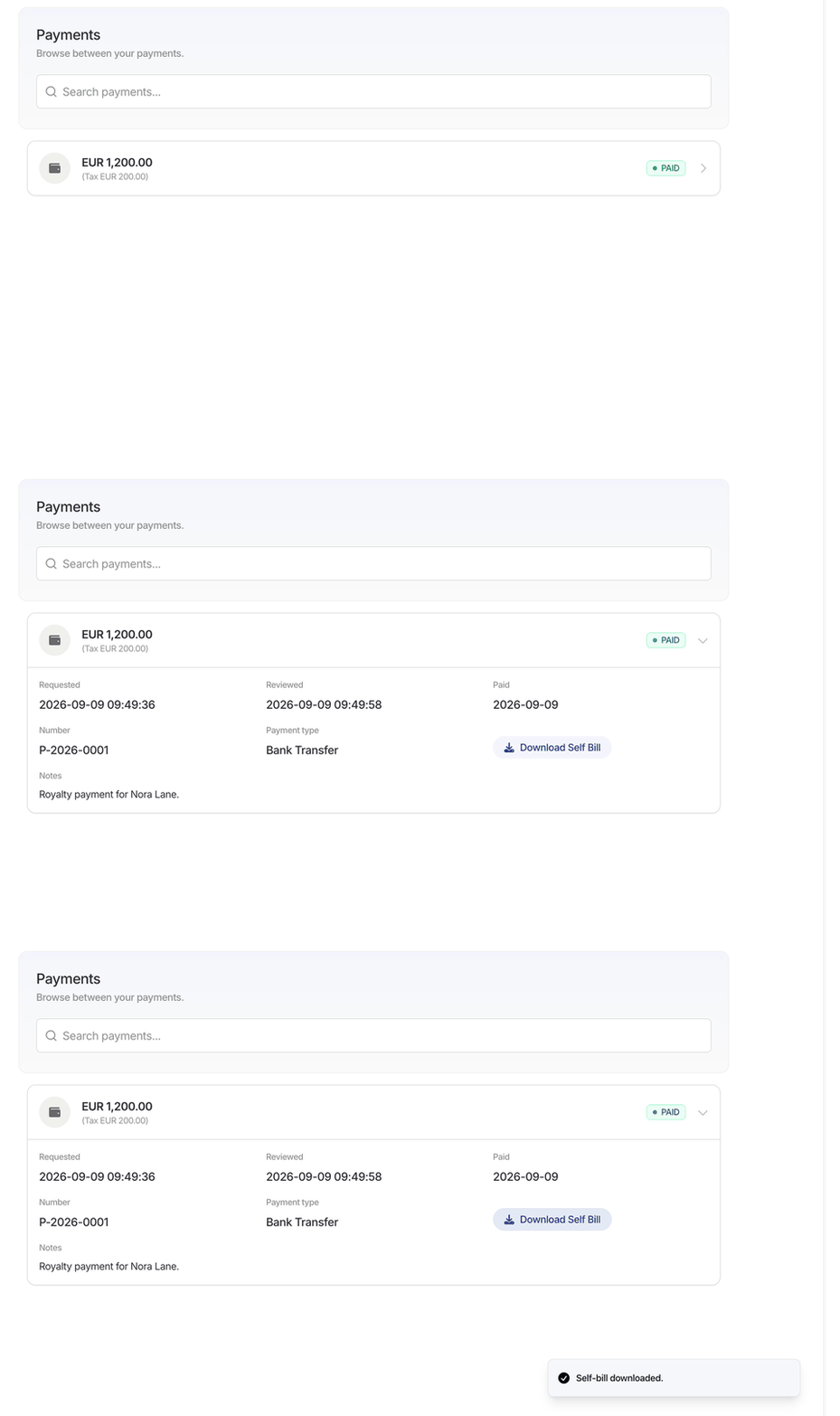
Each payment shows its total amount, currency, and status. The total includes tax; when tax is added, its amount appears below the total. For example, a EUR 1,000.00 payment with EUR 200.00 tax shows EUR 1,200.00. Click a payment to expand it: Requested, Reviewed, and Paid show the dates recorded for those stages. A dash means no date has been recorded. Number is the payment reference. Include this number when asking your record company about a payment. Payment type shows how the payment is recorded, such as Bank Transfer or Direct. Notes contains any explanation your record company has added. The search box finds payments by payment number, self-bill number, amount before tax, or text in their notes. If you see No payments exist yet, your payment history is empty. A royalty statement can exist before a payment is recorded.Payment statuses
Approval isn’t confirmation that money has reached your bank account. If a payment is marked Paid but hasn’t arrived, contact your record company with its payment number.
Self-Bills
A Self-Bill is an invoice your record company creates on your behalf. When one is available, expand the paid payment and click Download Self Bill to save the PDF to your device. The button is disabled until the payment is Paid. Payments for which you supply your own invoice don’t have a self-bill download.